
Summary
My tried-and-tested DaVinci Resolve export settings for YouTube - fast, decent quality, and not too big. Just what works (so far).
My “YouTube export settings” for DaVinci Resolve Studio 19.x. A work in progress.
DaVinci Resolve Free (the non-Studio version) won’t let you use “GPU acceleration” but many other options are still available.
Some updates in the spring of 2026.
Introduction
This is intended as a personal reminder and reference. Hoping to get feedback, suggestions and corrections. It is my opinion, based on my experience and, well, testing and asking around. I am an amateur hobby YouTuber (among other things), not a professional video editor. So I don’t claim for this to be perfect, good fit for everyone, or even very good – just the best that I could figure it out for now (will try to keep this up-to-date as I learn new stuff).
Step-by-Step: Custom Export Settings for YouTube
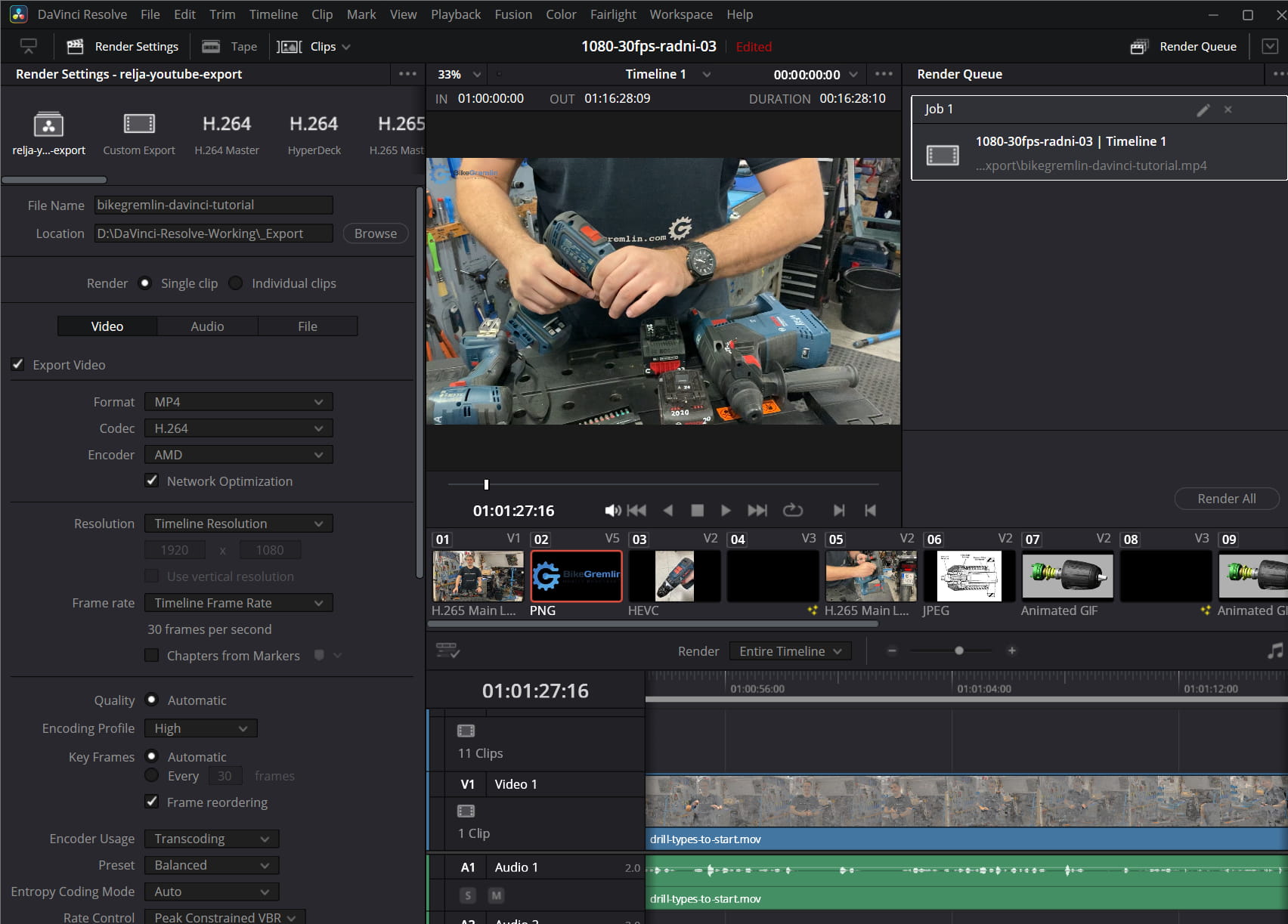
Start in the Deliver tab. Choose “Custom Export” to unlock all advanced settings.
Deliver Tab -> Custom Export
Picture 1
Video Tab
Format settings
- Format: MP4 (see the codec discussed section for details)
- Codec: H.264 (again, see the codec discussed section for details)
Update 2026: H.265 - Encoder: AMD (uses hardware acceleration for faster rendering, if you have an Nvidia card, choose that option of course)
- Network Optimization: Checked (moves metadata to the beginning so YouTube can process it all faster)
- Resolution: Timeline Resolution (so it will respect my timeline settings)
- Frame Rate: Timeline Frame Rate (again, same)
- Chapters from Markers: Unchecked
Encoding Settings
- Quality: Automatic (locked when using hardware encoding)
- Encoding Profile: High (ensures better compatibility with modern devices and gives teh encoder more flexibility, like using B-frames and CABAC)
Update 2026: Main10 - Key Frames: Automatic
- Frame Reordering: Checked (enables the use of B-frames, which are more efficient and result in smaller file sizes and better quality at the same bitrate)
- Encoder Usage: Transcoding
- Preset: Balanced
- Entropy Coding Mode: Auto (letting the encoder choose between CABAC for better compression, and CAVLC – based on the other settings)
- Rate Control: Peak Constrained VBR (allows the bitrate to adapt to scene complexity while capping the peak)
- Target Bitrate: 20,000 Kb/s (see the bitrates discussed section for details – important)
Update 2026:
60,000 Kb/s @ 4K 30fps and 110,000 @ 4K 60fps
18,000 Kb/s @ 2560×1440 30fps and 24,000 @ 2560×1440 60fps - Peak Bitrate: 30,000 Kb/s (again, see the bitrates discussed section)
Update 2026:
90,000 Kb/s @ 4K and 160,000 @ 4K 60fps
26,000 Kb/s @ 2560×1440 30fps and 35,000 @ 2560×1440 60fps
Advanced Settings
- Pixel Aspect Ratio: Square (1:1 pixel shape – “Cinemascope” is only used for ultra-wide film-style exports 2.35:1 etc, which I don’t need)
- Data Levels: Auto
- Retain sub-black and super-white data: Unchecked
- Color Space & Gamma Tag: Same as project
- Gamma Tag: Same as project
- Data Burn-In: Same as project
Render Settings
- Bypass Re-encode When Possible: Checked
- Use optimized media: Unchecked
- Use proxy media: Unchecked
- Use Render Cached Images: Unchecked
- Force Sizing to Highest Quality: Checked (check if using scaling/zoom effects)
- Force Debayer to Highest Quality: Unchecked (only applies to RAW footage)
- Enable Compatibility with Legacy Players: Unchecked
- Render All Video Tracks: Checked
- Enable Flat Pass: Off (flat pass disables all colour correction and grading)
- visionOS Bypass: Off (for the Apple Vision Pro headset only)
- Disable Sizing and Blanking Output: Unchecked (I want my zooming in and similar to be shown)
- Trigger Script At: Unchecked (no post-renders scripts for me, for now)
Audio Tab
Audio settings
- Export Audio: Checked
- Codec: AAC
- Bit Rate Strategy: Constant Bit Rate
- Track Data Rate: 320 Kb/s
- Sample Rate: 48000 Hz (or same as project)
- Render One Track Per Channel: Unchecked (only check this if exporting multi-mono or separate stems like left/right split, or isolated VO/music/sfx)
- Output Track 1: Bus1 (Stereo)
Audio Normalization
- Normalize audio: Unchecked (I do this in Fairlight, before exporting – so no touching any other options here)
File Tab
- Filename uses: Custom Name
- Custom name: e.g. how-to-replace-brake-pads-yt1080p30
- File suffix: blank (leaving this blank, can be used for versioning)
- File subfolder: blank (specify for grouped exports)
- Use ( ) digits in the filename: 8 (has no effect for full timeline exports)
- Each clip starts at frame: Unchecked (makes sense to check for individual clip exports)
- Render without timecode: Unchecked
- Start timeline timecode at: Unchecked
- Replace Existing Files: Not allowed (Resolve protection against overwrites)
Render Speed
- Render Speed: Maximum (faster render, no quality loss with hardware encoder – reduce to 90 or 80 in case of bugs)
Saving Your Preset
Once you’ve set everything up:
- Click the three-dot menu next to “Custom Export”
- Choose “Save As New Preset…”
- Name it something like “yt-1080-60-custom1”
- Optionally, export the preset as a file for backup or use on other machines.
My settings exported (with 12,000 Kb/s Target Bitrate):
https://files.bikegremlin.com/obsidian-files/relja-01/relja-youtube-export-render.xml
Bitrates Discussed
For maximum quality, without wasting storage space, here’s a simple overview table:
| Resolution @ FPS | Target Bitrate (Kb/s) | Peak Bitrate (Kb/s) |
|---|---|---|
| 1080p @ 30 | static: 8,000 fast motion: 12,000 | static: 12,000 fast motion: 16,000 |
| 1080p @ 60 | static: 12,000 fast motion: 16,000 | static: 16,000 fast motion: 24,000 |
| 2560x1440p @ 30 | static: 18,000 fast motion: 24,000 | static: 26,000 fast motion: 35,000 |
| 2560x1440p @ 60 | static: 26,000 fast motion: 35,000 | static: 35,000 fast motion: 50,000 |
| 4K (2160p) @ 30 | static: 60,000 fast motion: 80,000 | static: 90,000 fast motion: 120,000 |
| 4K (2160p) @ 60 | static: 85,000 fast motion: 110,000 | static: 125,000 fast motion: 160,000 |
Table 1
Update: H.265 in 2026?
1. YouTube re-encodes everything
YouTube doesn’t keep your original file, no matter how efficient or high-quality it is.
Instead, it transcodes (re-encodes) your upload into its own formats for streaming – often multiple versions at different resolutions and bitrates.
2. “Enforcing” quality
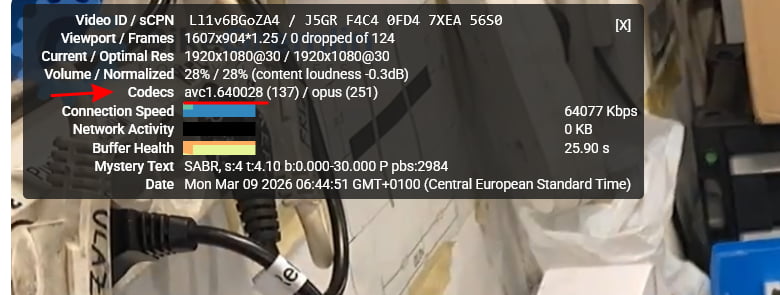
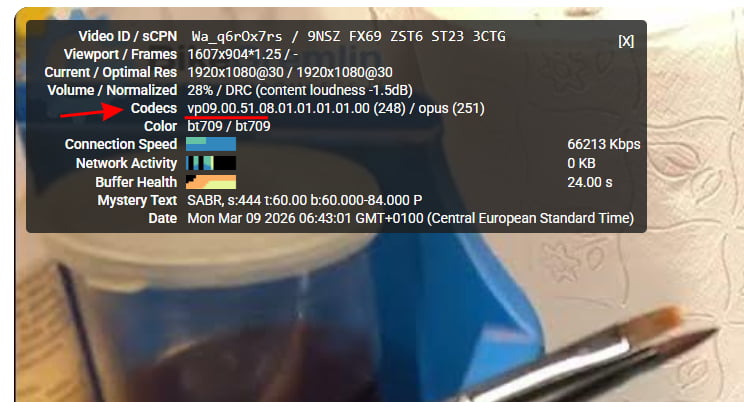
Uploading in 4K using H.265 is the most reliable way to force YouTube to use the VP9 or AV1 codec. If you upload 1080p in H.264, you almost always get the low-quality AVC1 codec, which looks terrible for mechanical work (which is most of my videos – small details in general get ruined).
H.265 handles 10-bit color (Main10) much more efficiently than H.264. This prevents “banding” in the shadows of the workshop or the gradients of a clear sky in my riding videos.
Here are two screenshots to demonstrate the problem: two very similar videos, shot with the same equipment, ended up receiving different final quality (months after upload, so no temporary measure):
Picture 2
Picture 3
3. Compatibility issues
In 2026, H.265 is more widely supported by more and more applications.
Also, YouTube creates an AVC1/1080p version of your video regardless of what you upload, so you don’t need to worry about your viewers’ device compatibility – YouTube handles the “backward compatibility” for you.
4. YouTube’s internal preference
YouTube has apparently started cutting costs on bandwidth and serving lower quality videos. There is a well-known trick of encoding and uploading at least 1440p videos even if your footage is 1080p, just to “force” youtube to not squash your video’s quality.
In those terms, making and uploading 4K videos in high bitrate does give YouTube a high-quality source that it will not just ignore at the time of writing (will update this if that changes).
Recommended workflow
- Export to H.265 in 4K for YouTube
Or 2560x1440p to save storage
High bitrate, high quality, maximum compatibility. - Expect increased costs for editing & encoding hardware and storage.
Alternative is to go all 1080p and make sure your lighting, frame composition, and pace are matching the limits of YouTube’s aggressive compression.
Conclusion
These are the settings I currently use for exporting YouTube videos with DaVinci Resolve Studio 19.x – based on testing, googling, and good old trial and error. They aim to balance render speed, compatibility, and quality, especially for hobbyist YouTubers like myself who want solid results without massive file sizes or complex post-processing.
Update 2026: due to recent YouTube compression and distribution updates, it seems I can no longer get away with 1080p if I want videos to show details clearly. Tough year for us on a budget. Tough decade as it seems. Sigh.
I’ll keep updating this as I learn more or as new versions of Resolve change things. Feedback and suggestions are more than welcome – especially from people who’ve found better ways or spotted any mistakes.
Sources
- YouTube’s own video format recommendations:
https://support.google.com/youtube/answer/1722171 - Blackmagic Forum (many discussions over the years, didn’t remember to note the best ones for this particular topic, but it’s worth a search if you need some good video-editing tips):
https://forum.blackmagicdesign.com/
Last updated:
Originally published:
