
When booting Ventoy on a computer with Secure Boot enabled, the system will present a blue screen requiring you to authorise Ventoy’s binaries. This guide outlines the one-time process to enrol the Ventoy certificate into your system’s Machine Owner Key (MOK) database.
Step-by-step enrolment process
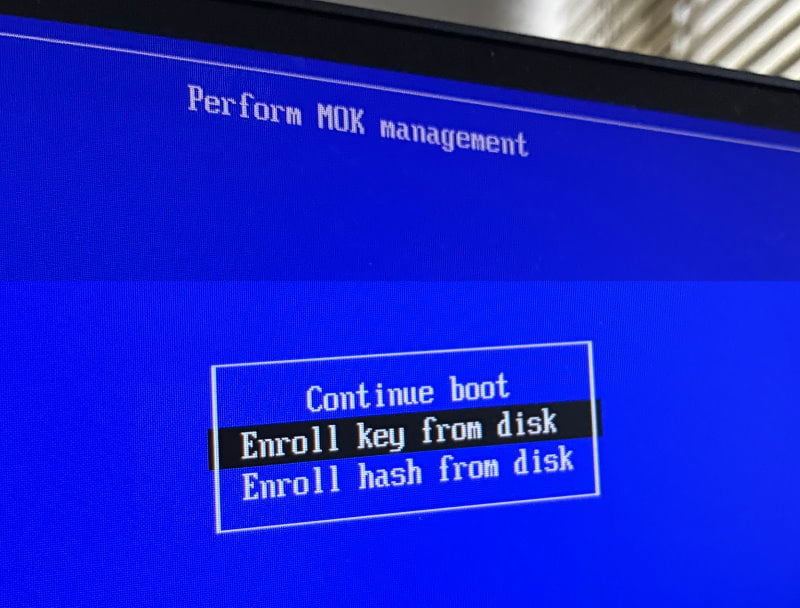
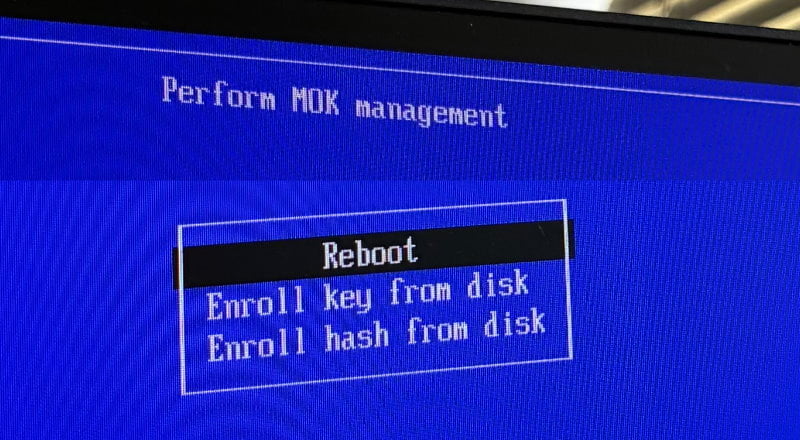
- Select Enrolment Option On the blue Perform MOK management screen, use the arrow keys to select Enroll key from disk and press
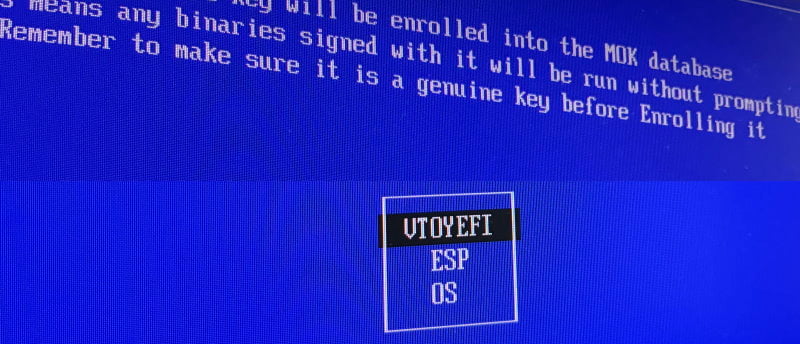
Enter. - Select the Ventoy Partition From the list of available disks/partitions, select VTOYEFI.
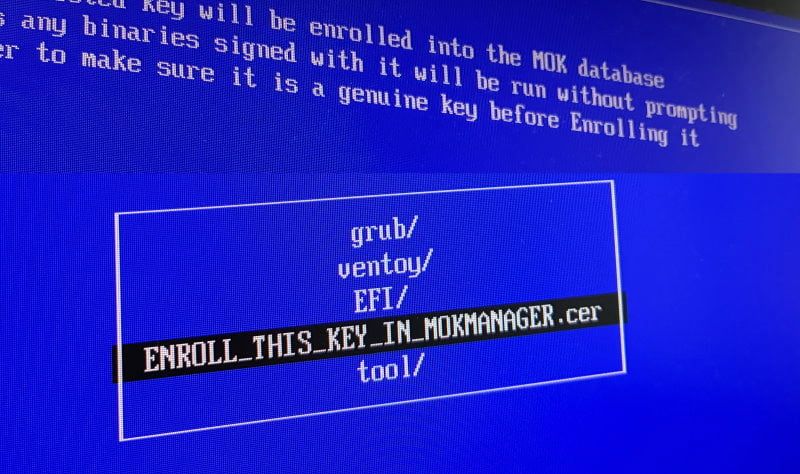
- Locate the Certificate Navigate the directory structure to locate and select the certificate file:
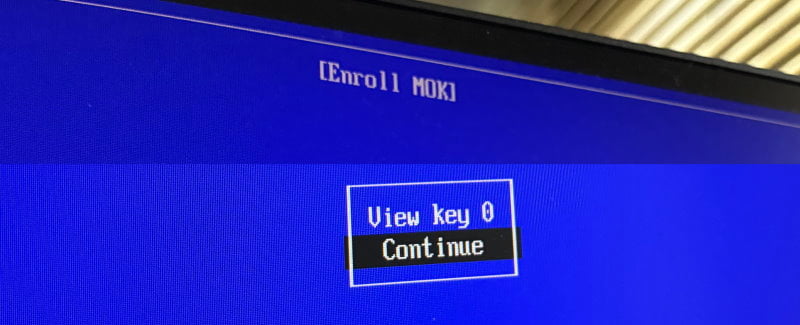
ENROLL_THIS_KEY_IN_MOKMANAGER.cer - Review the Key On the Enroll MOK screen, select Continue to proceed past the key details preview.
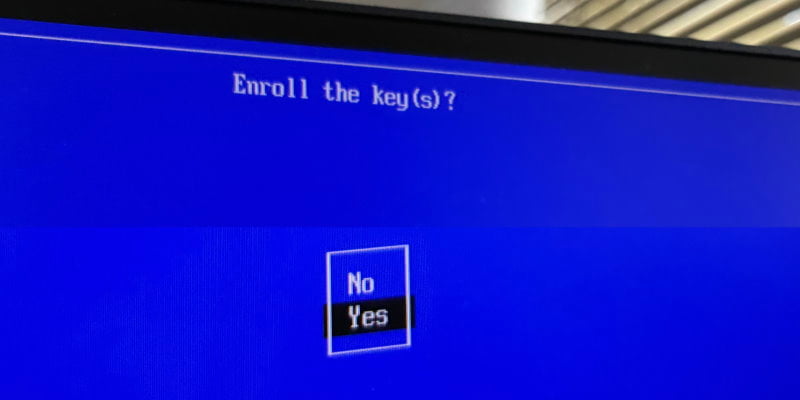
- Confirm Enrolment When prompted with Enroll the key(s)?, select Yes.
- Reboot the System You will be returned to the main menu. Select Reboot.
Booting Your ISO
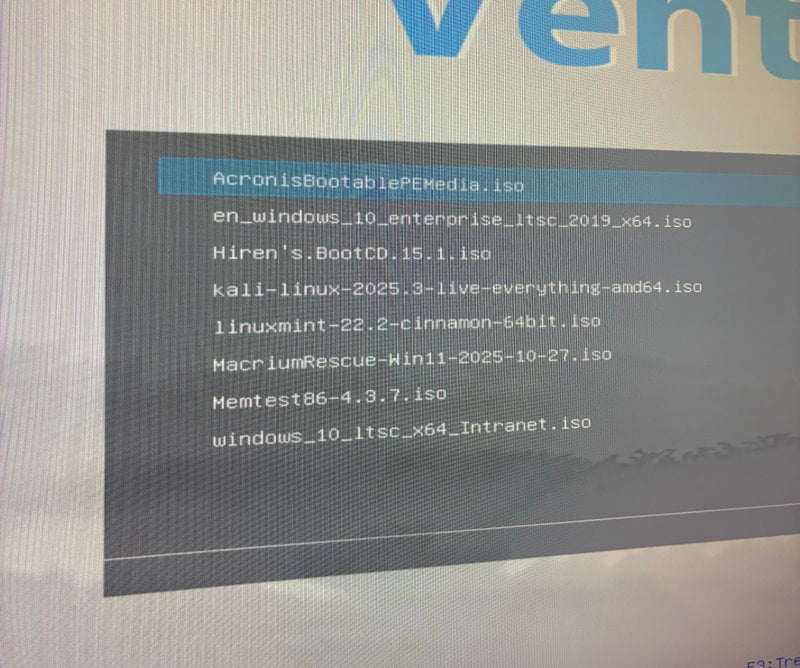
Once the system reboots, it will bypass the MOK management screen entirely and load the standard Ventoy menu:
- Select your target image (e.g.,
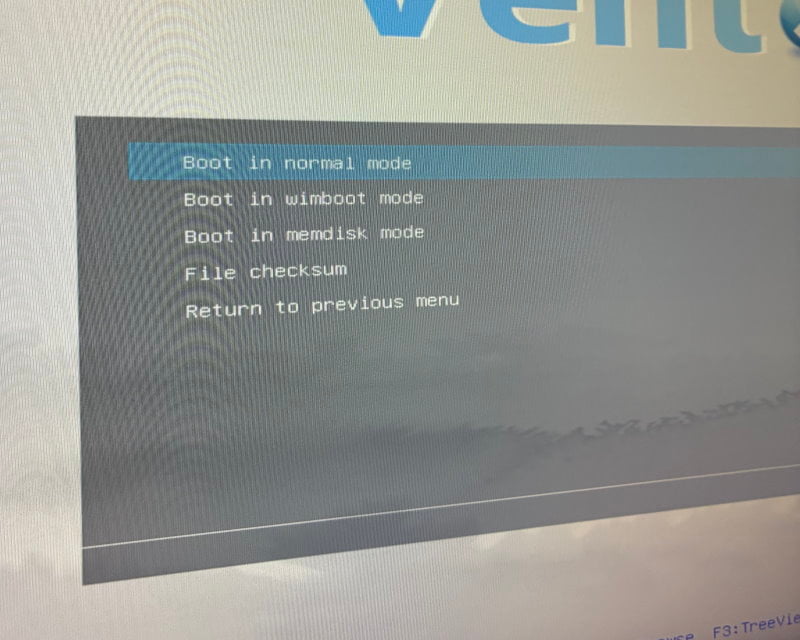
AcronisBootablePEMedia.isoor a Linux/Windows installer). - Choose Boot in normal mode.
Note: This configuration is saved directly to your motherboard’s NVRAM. You will not need to repeat these steps on this specific computer unless the BIOS/UEFI firmware is cleared or updated.
Screenshots
Pictures speak louder than words. 🙂
Last updated:
Originally published:
