
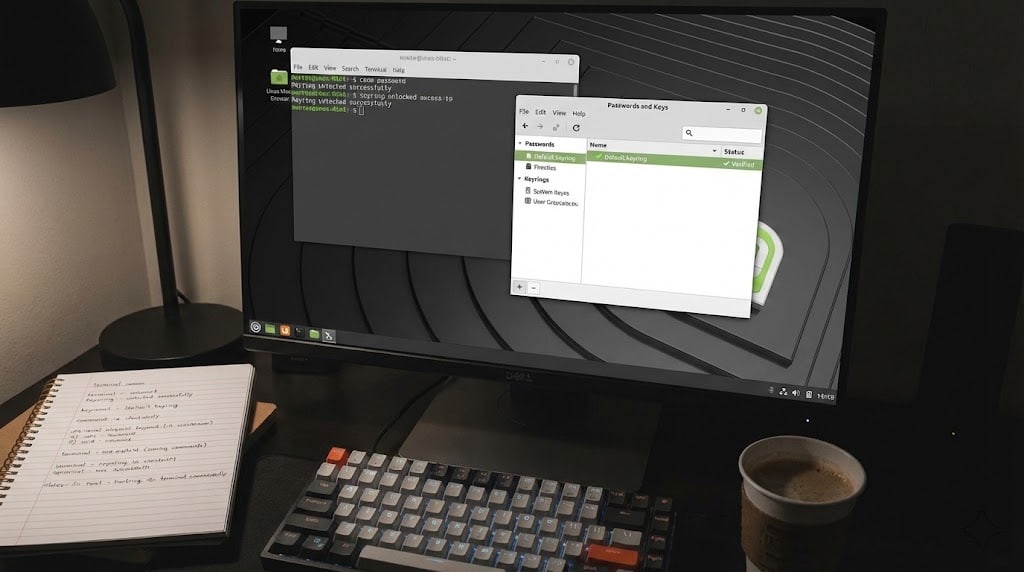
I recently ran into an incredibly frustrating issue on my Linux Mint desktop. Because on some PCs I use auto-login (with a fully encrypted drive), applications like Google Chrome and Ente Authenticator couldn’t automatically unlock the system keyring.
Instead of asking for a password to unlock it, the system bugged out. On every single boot, it prompted: “An application wants to create a new default keyring.” This created dozens of duplicate, useless keyrings, and my apps completely forgot my login sessions after every restart.
I don’t know if this is a frequent bug or if this exact sequence will work for everyone. However, after trying several terminal commands and workarounds (including setting a blank password, which didn’t work for me), here is the exact process I used to finally fix it.
The Steps I Took
- Cleared the Junk: I opened the Passwords and Keys application and deleted every single keyring listed under “Passwords” to get a completely clean slate.
- Triggered a New Keyring: I opened Google Chrome, which immediately prompted me to create a new default keyring.
- Set a Real Password: I entered a password for it. Leaving the password blank failed to solve the loop for my setup.
- Made it the Default: I went back into Passwords and Keys, right-clicked the newly created keyring, and selected Set as default.
- Restarted: I rebooted the computer.
- Unlocked Manually: After the reboot, before opening any browsers or apps, I opened Passwords and Keys and manually unlocked the new keyring by typing my password.
- Reconnected Apps: With the keyring unlocked, I opened Ente Authenticator and logged in so it could properly save its session data to the vault.
- Final Test: I rebooted one last time to confirm.
The Result
The loop is finally broken. Now, when I boot up and open Chrome or Ente, the system just asks for my password once to unlock the existing keyring. It remembers my logins perfectly.
Last updated:
Originally published:
