

If I get this right, by the end of the article, you will have understood: email domain, account, client, server, SMTP, POP3, and IMAP.
1. Email SERVER vs Email CLIENT
Email SERVER
Email server is basically a set of programs (applications) that can run services like SMTP (for sending emails), and POP3 and IMAP for receiving them (sending and receiving is often handled by separate programs, which can even run on separate computers).
These usually run on a computer in a data centre and basically do two things:
- Receive and store emails addressed to you (like using your mailbox at home to receive postcards – that’s a Wiki link for the teens who don’t know what a postcard is).
- Send emails for you (like using a post office to send a postcard).
Examples: Google Workspace, Microsoft Exchange, and Exim + Dovecot – to name a few.
In this article, when I say “server” I mean this combo: sending (SMTP) and receiving (POP3 and IMAP) services/applications and the computer(s) they are running on.
Email CLIENT
The thing you usually can see is called an email client. That’s software (“app”) that is installed on your phone or computer, which you then use to read and send emails. It connects to your email server and “asks” it to do things for you using different protocols, like sending emails (via SMTP), and receiving them (via POP3 or IMAP).
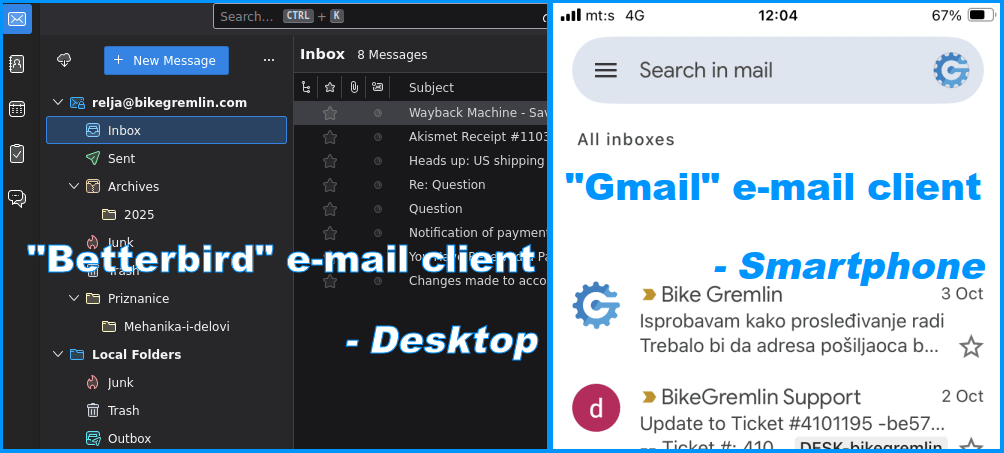
Picture 1
You can also use a web-client for Email (via your web-browser) like mail.proton.me, gmail.com (now mail.google.com) etc.
Examples: Mozilla Thunderbird, Betterbird, and Gmail app – to list a few.
2. SMTP – and POP3 vs IMAP
SMTP – sending
SMTP (Simple Mail Transfer Protocol) is the protocol used for sending emails. Your email client connects to your email server and uses it to send an email (relay it).
The email then may pass through one or more MTAs (Mail Transfer Agents) until it reaches its destination (the email address you sent the email to).
It’s like a postal service with all the transit countries and cities before the destination.
POP3 – receiving
POP3 (Post Office Protocol version 3) is a simple protocol for fetching emails from the email server. Unlike IMAP, POP3 works one-way (remember this, I’ll explain it) and it pulls emails from the server when you ask it to (you can configure it to fetch new emails every 5 minutes or so).
A good analogy for it is opening your home mailbox and taking the mail you got. To reiterate, POP3 works like this:
- Your email client connects to your email server.
- It copies (downloads, fetches) new emails from the server (so your emails are on your computer/phone, copied, and you can read them offline!).
- Then it can delete the fetched emails, or leave them on the server (depending on how you’ve configured your email client).
If you configure your email client to leave a copy of the fetched emails on the email server, you can have several different computers (and smartphones) get their own copies of emails for a given account (and you can configure your client to remove fetched emails after X days so they don’t pile up on the server). See my email implementation for details, and here’s a screenshot of an example:

Picture 2
Again, this is a simple protocol that can fetch emails from the server and either delete them from the server afterwards, or remember which emails it fetched so that it doesn’t keep re-fetching them again and again.
Note:
Deleting a fetched email in your client doesn’t affect the email server – it is done locally. That is the important distinction compared to the IMAP explained below:
IMAP – syncing
IMAP (Internet Message Access Protocol) keeps all the emails on the email server, and uses the email client to show what’s on the server. So, unlike POP3, IMAP works two-way – and it can “push” new emails to your email client:
Everything is stored on the server, and clients simply sync and show the stuff you are working on. This has some pros and some cons:
- Server storage management:
All the emails are stored on the email server, taking up storage space on it (when you are reading an email, your client just temporarily reads it online, and emails are removed from the server only when you delete them via your client). - Limited offline access:
Your emails are not guaranteed to be all available offline (this depends on the temporary cache setup of your client). - Centralized server storage and sync:
Every client you use for IMAP connection will see the same “situation” on your server, for example:
when you create a new directory (“folder”) in your client, it gets synced – created on the server, so any other IMAP client will show it too (and the same goes for deleting an email). - Push notifications:
You needn’t configure your client to fetch emails at a given interval, as many modern servers can “push” new emails to your client as soon as they arrive to the server (if your client is online and working, and your server supports “IDLE” IMAP protocol’s extension).
This is how Gmail client works if you’ve used it in a browser or a phone app.
It is fair to note that many IMAP clients will keep a cached local copy of the recent emails so you needn’t be 100% online all the time to read emails. Still, all your emails are stored on the server, not offline. This can make backups a bit more complicated, especially if you have many emails.
3. Email ACCOUNT vs email DOMAIN
Email DOMAIN
I’ve explained what domains and subdomains are, here: “What is a domain, i.e. domain name?” If you don’t feel like clicking, I have no way of pouring the knowledge and understanding in your brain, and I see no reason to copy/paste the existing paragraphs.
Very briefly put: “bikegremlin.com” and “gmail.com” are domains (and “io.bikegremlin.com” is a subdomain of the “bikegremlin.com” domain).
Email domain is the domain an email account belongs to. All the important email-related DNS settings are configured on a per-domain basis. That lets everyone know the address of the server for a given account.
Read this paragraph again and memorize it before moving on!
Email ACCOUNT
An email account is what we also call an email address. It consists of the [username], an [@] sign, and the domain (or a subdomain). A few examples of different email accounts:
- [email protected]
“taylor.swift” is the username; “bikegremlin.com” is the domain. - [email protected]
“madonna” is another account/username on the “bikegremlin.com” domain. - taylor.swift@mail.bikegremlin.com
“taylor.swift” is the username; “mail.bikegremlin.com” is the domain (technically a “mail” subdomain of the “bikegremlin.com” domain). This account is not the same as “[email protected]” because the (sub)domain is different! - [email protected]
“taylor.swift” is the username; “gmail.com” is the domain.
As you can probably see now:
- We can create countless email accounts on one domain (or one subdomain).
- Even if the username is the same, if the (sub)domain differs, it’s a different email account
(“taylor.swift@bikegremlin.com” is different from “taylor.swift@mail.bikegremlin.com”).
Our email account is where we receive email from others – and other people’s email accounts are where we send our emails to. Here is how this works:
How that works?
For an email to reach an address, we must first know where the server for that address is. That is written in the email-related DNS records (MX records to be precise).
For the “bikegremlin.com” domain the email server is “friday.mxlogin.com” (at the time of writing). The same goes for the “mail.bikegremlin.com” subdomain (both hosted on the same email server). So, anyone sending email to either “[email protected]” or “[email protected]” will deliver the email to the same server.
Then, the “friday.mxlogin.com” server will try to find a matching account. Since “[email protected]” exists there, email(s) for it will be delivered. The account “[email protected]” on the other hand does not exist on that server, so that email will not be delivered – it will bounce.
Conclusion
Now you know the “why” and “how” behind email servers, clients, and protocols.
If you want to see a real-world setup (mine) – and how I worked around Google’s POP3 shutdown – check out My e-mail setup.
I hope this article gives you the basics needed for an educated choice on your email setup – both in terms of the optimal storage size for your email server (or per account), and the right POP3 vs IMAP configuration.
Last updated:
Originally published:
