

After Google announced they will no longer support POP3 pulling for domain e-mails. My Gmail integration with website e-mail will then stop working! I had to find a solution – so here is what I’m using to read, send, and backup my domain e-mails (will try to keep this up-to-date as things inevitably change over time).
If you aren’t sure what SMTP, POP3 or IMAP mean, see:
Email 101 – The very basics explained
1. Basic principles
These are my priorities – yours may differ.
- Security.
- Synced – accross several computers and phones, for the same e-mail account.
- Backups – should be easy, convenient and low cost.
- Sparing e-mail server storage (for storing both the e-mails and backups).
- Low overall costs, but not at the expense of reliability (including e-mail deliverability and security).
- Simple setup (simpler is better).
2. Infrastructure
2.1. E-mail hosting
I’m using MXroute for my domain e-mails. It is cheap, if you can keep your e-mail server storage usage reasonable (it makes no sense to store gigabytes or terabytes of e-mails on your e-mail server – use local computers, or a separate cloud storage – for e-mails and backups).
Update: I added CraneMail as a backup email infrastructure (so far so good).
The reasons why such separate e-mail hosting is a good idea (pros and cons).
One-time lifetime payment works for my stuff, while client e-mails are stored on a reseller account (better separation and privacy for my clients – the less I know, the better LOL).
2.2. DNS
For this I use the free Cloudflare tier. Related info:
- What on Earth is Cloudflare and why use it?
- How to configure DNS – all records explained (including the e-mail-related records).
- How to configure your domain’s DNS using Cloudflare.
2.3. Backup storage
Local encrypted hard disks at two separate locations, and Hetzner Storage Box.
This strikes the ballance between security, reliability (and redundancy), practicality, and affordability for us in Serbia->Europe->third big rock from the Sun.
If I forgot something I’ll add it later, now let’s move on…
3. Implementation
3.0. E-mail client configuration in general
This article uses Gmail client configuration as an example, but it shows how every email client is configured (the basics are the same):
https://io.bikegremlin.com/10364/website-gmail/
3.1. Smartphone e-mail client
Update:
I have configured my phone (and laptops) to work using IMAP (but I think that POP3 info below is still educational). Why?
Primarily because I don’t want to bother deleting emails from my phone.
I sort them out and archive on my PC, and phone is good with just the most recent two weeks of emails (once they are removed from the server by the PC’s email client, they will automaticaly disappear from the phone thanks to how IMAP works).
Another benefit is that I can delete occasional junk emails right away (deleting them on my IMAP phone removes them off the server).
MXroute server supports IMAP push (“IDLE”), so I get notified right away when new emails arrive, but that is not important for me.
This doesn’t always work superfast on the latest IOS, but it is still fast-enough for all practical purposes.
First but the least important (for me – your priorities may differ).
Iphone (still not using Android – such is life)
For IOS, I’m using the stock e-mail client and adding my domain e-mail accounts to it.
Settings -> Apps -> Mail -> Mail Accounts -> Add Account
There, I could configure POP3 email fetching and SMTP sending (see 3.0 above for details).
The important catch is to go to:
Advanced -> INCOMING SETTINGS section -> Delete from server ->
set this to “Never”. Why?
Because I’ve configured my PC client to remove emails after 14 days after having downloaded them. This gives it enough time to be sure that other PCs and phones have received the messages too, and I can push backups from my PC(s).
3.2. Windows e-mail client
Update, 2026:
I started using eM Client for Windows and it is pretty awesome.
It has a “hybrid conversation view” so I can see each email as a separate individual email, but also see all the emails in a given correspondence once I click on any email from the correspondence.
Another great thing is it can handle my Gmail accounts well – so I can one-stop-shop check all my emails in one place.
Bought a Business licence lifetime (one-time payment) and I expect it will pay for itself with the time, hassle (and mental energy) saved over the years.
After some head-bashing and after having been amazed with a silly Thunderbird bug, I got a great recommendation in this LES forum thread to try… wait for it… Betterbird! 🙂
Yes. 🙂
https://www.betterbird.eu/
– Note that Windows will throw a ton of “you’ll get cancer” warnings – ignore ’em, the offical download link seems safe – use VirusTotal (free) or ESET PREMIUM (the good home-user paid antivirus) to confirm.
That’s what it’s called. Looks like Thunderbird without bugs and so far it’s working fine. Here is a screenshot if it helps (for general email client setup principle, see section 3.0 above).

Picture 1
3.3. Linux e-mail client – Betterbird
Update 2026:
No eM Client for Linux (only Windows and Mac), but there is a hack that might work (haven’t tested it yet):
https://forum.emclient.com/t/em-client-on-linux/110639/27
I have opted for Betterbird for Linux. There are two ways to install it. One is a Flatpak installation.
The other is a tarball you can get from the download page:
https://www.betterbird.eu/downloads/
Extract it, and run the “betterbird” file.
I prefer tarball to running the Flatpak version because it lets me copy/paste my email directory for backups (and backup restoration). Updates are done by overwriting the old installation files (and, just in case, my emails are stored in a completely separate directory).
Still, for those who prefer Flatpak, for Ubuntu (and Mint – yet to test and confirm this), this is how to install Flatpak and then install Betterbird:
First install Flatpak (with all its pros and cons – it’s your PC and your call):
https://flathub.org/en/setup/Ubuntu
(for Linux Mint, Flatpak is already installed)
sudo apt install flatpak

sudo apt install gnome-software-plugin-flatpak
Add the Flatpak repository, “Flathub”:
flatpak remote-add --if-not-exists flathub https://flathub.org/repo/flathub.flatpakrepoCode language: JavaScript (javascript)
Install Betterbird:
https://flathub.org/en/apps/eu.betterbird.Betterbird
flatpak install flathub eu.betterbird.BetterbirdCode language: CSS (css)Run Betterbird:
flatpak run eu.betterbird.BetterbirdCode language: CSS (css)
Optional (for convenience) – Install Flatpak Software Manager, “Warehouse”:
https://flathub.org/en/apps/io.github.flattool.Warehouse
flatpak install flathub io.github.flattool.WarehouseCode language: CSS (css)Run Warehouse:
flatpak run io.github.flattool.WarehouseCode language: CSS (css)4. Back to IMAP – update
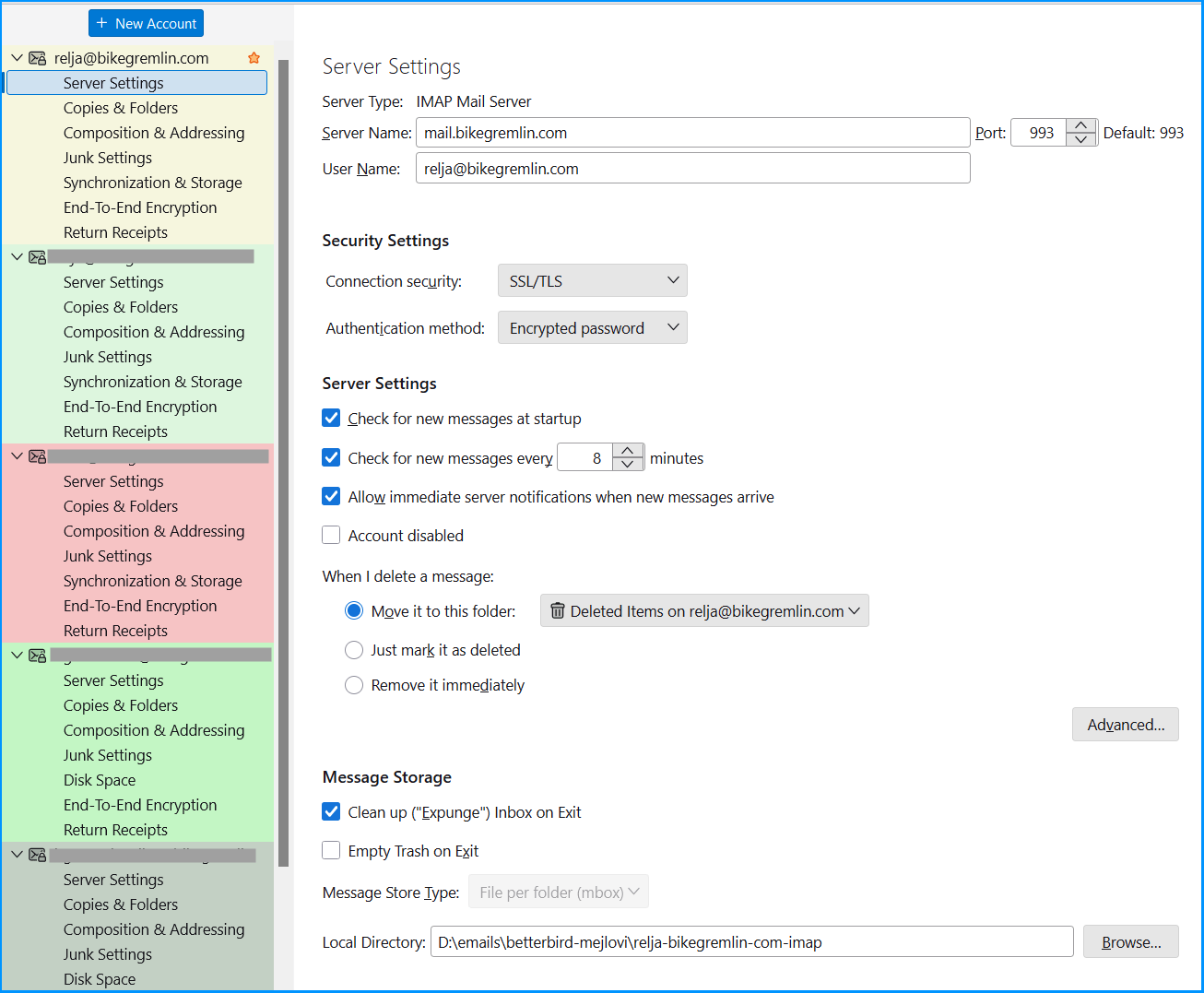
Over time, I decided to switch to using IMAP. I’m always on the move, switching between different computers (and operating systems), so the speed penalty of IMAP sync seems like an acceptable price to pay for convenience of having my exact inbox archive structure available wherever I go.
Yes, that means all my emails are stored on the server, so I must pay for larger capacity servers.
Yes, that means I’ll have to sync when I wish to migrate email accounts (change email server).
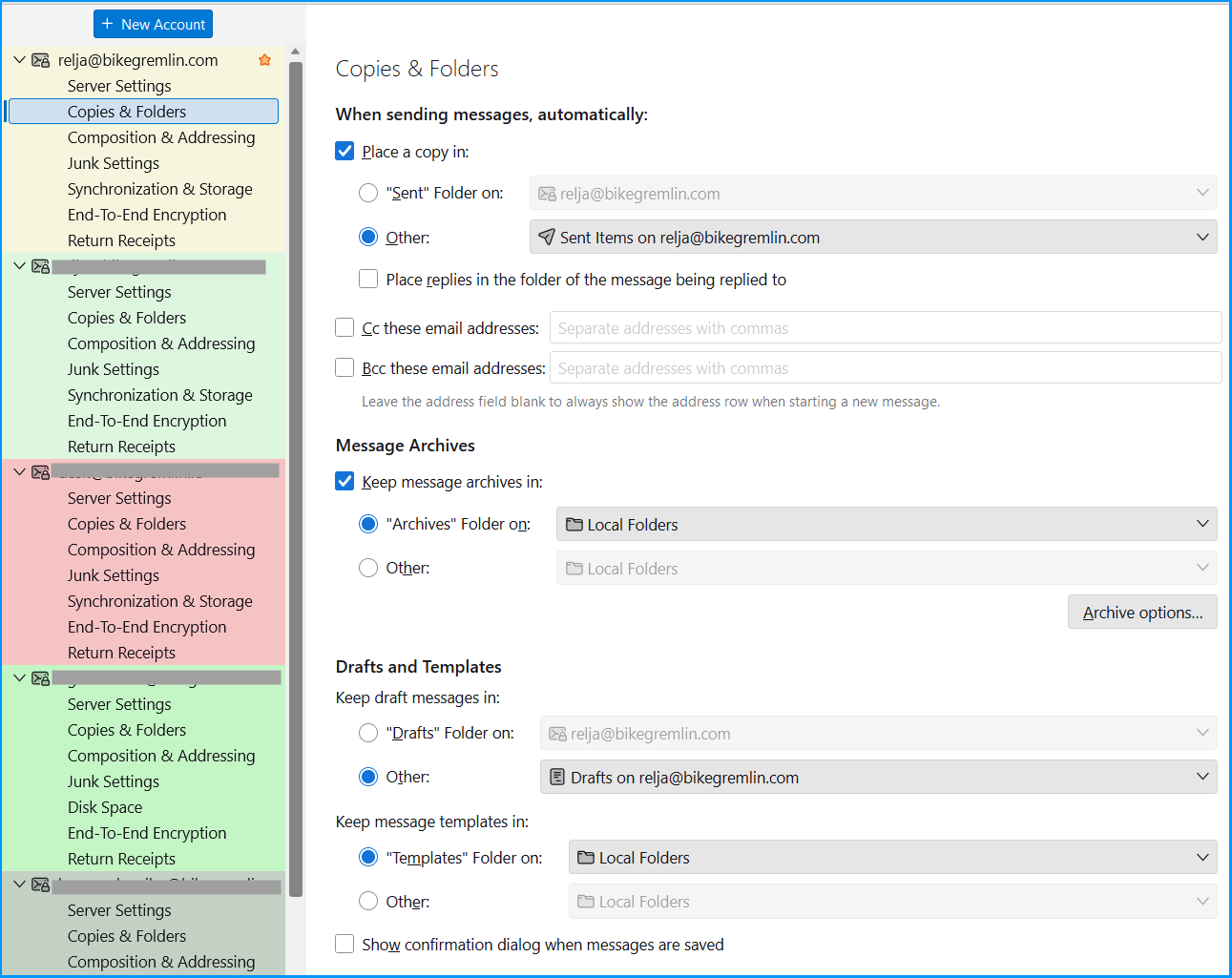
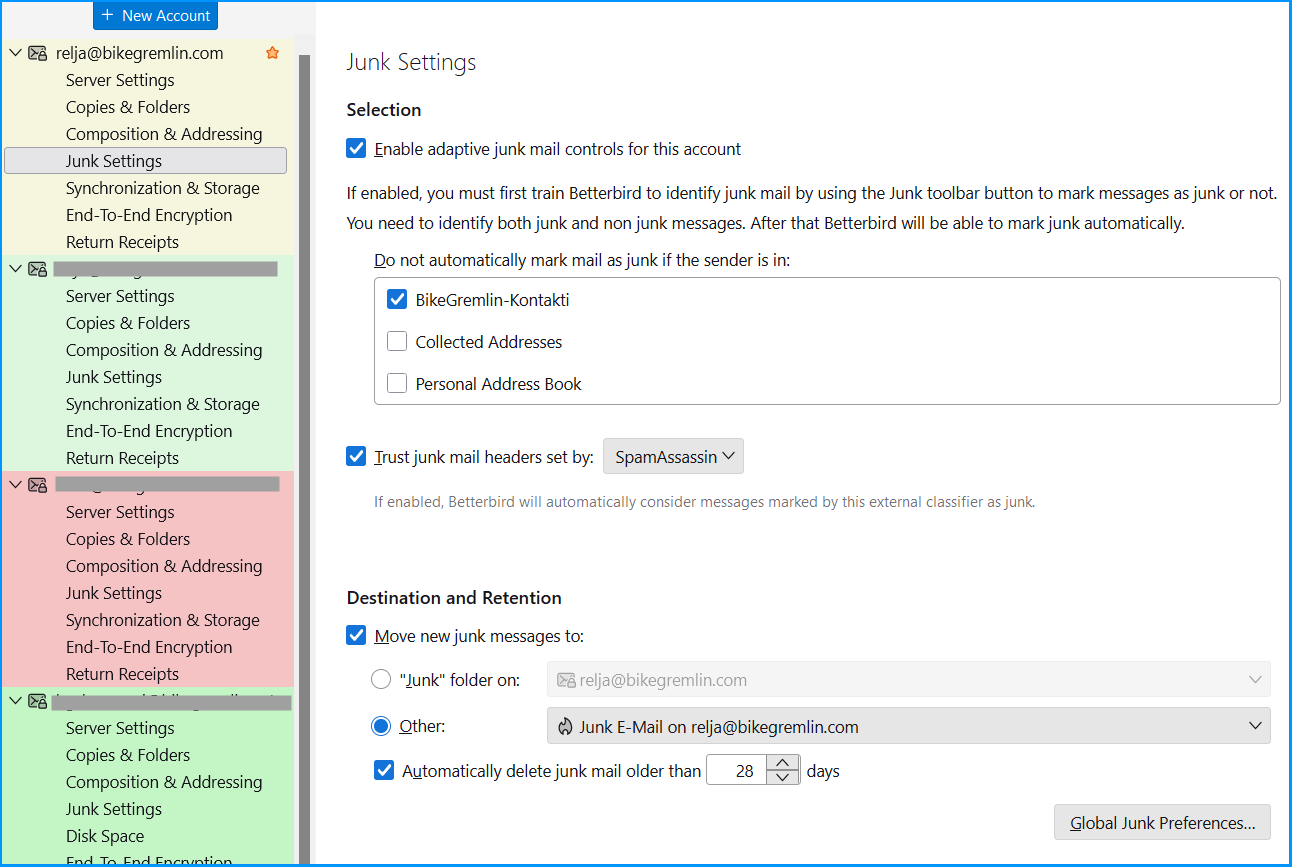
Setup screenshots are clear enough (click on images to enlarge them):
Backups
For backups, I can just copy the Betterbird directory as configured in picture 1 above. That is: close the Betterbird client, then copy the directory.
This goes smoothly even between Windows and Linux – so, I can keep my emails backed up offline, and restore backups in no time.
Betterbird settings backup
In addition to the above-described emails/files backup (tested that, multiple times, on different computers and OS-s – it works), Betterbird settings can also be saved.
Sources this answer took the info from:
- Thunderbird official guide: “Move Thunderbird data to a new computer” (1)
https://support.mozilla.org/en-US/kb/moving-thunderbird-data-to-a-new-computer - Help Desk Geek: “How To Move Your Thunderbird Profile & Email To a New Windows Computer” (2)
https://helpdeskgeek.com/how-to-move-your-thunderbird-profile-email-to-a-new-windows-computer/
The text below, mostly copy/pasted – I haven’t tested restoration using this method yet!
Short Answer: To migrate Betterbird (a Thunderbird fork) from an old PC to a new one, you mainly need to copy your profile folder/directory (which contains all emails, accounts, settings, and add-ons) from the old machine and place it in the correct location on the new machine.
🛠️ Step-by-Step Migration Process
- Locate the Profile Folder on the Old PC
- In Betterbird (same as Thunderbird), go to Help → Troubleshooting Information.
- Find the entry Profile Folder and click Open Folder.
- This opens the directory where all your data is stored (emails, address books, settings, extensions).
- Copy the Profile Folder
- Close Betterbird completely.
- Navigate up a few levels until you see the folder named Betterbird (or .thunderbird depending on OS).
- Copy this entire folder to a transfer medium (USB stick, external drive, or cloud storage).
- Prepare the New PC
- Install Betterbird on the new computer, but do not set up any accounts yet.
- Open Betterbird once, then close it again. This ensures the program creates a default profile folder.
- Replace the New Profile with the Old One
- On the new PC, open the profile folder location (same method: Help → Troubleshooting Information → Open Folder).
- Close Betterbird.
- Delete or rename the newly created profile folder.
- Paste your old profile folder in its place.
- Start Betterbird
- Launch Betterbird. It should now load all your old emails, accounts, and settings exactly as they were.
⚠️ Important Notes
- Hidden folders: On Windows, the profile folder is usually under
C:\Users<Your Name>\AppData\Roaming\Thunderbird\Profiles\xxxx.default - On Linux, it’s under ~/.betterbird/.
- Version compatibility: Make sure the Betterbird version on the new PC is the same or newer than the old one to avoid compatibility issues.
- Backup first: Always keep a backup of your old profile folder before replacing anything on the new machine.
✅ What You Need
- The Betterbird installer for the new PC.
- The profile folder from the old PC.
- A transfer method (USB, external drive, or cloud).
Conclusion?
This is it for now, a work in progress to keep up-to-date as things change.
No, I won’t be going into details about how to configure email clients (including Betterbird) here. Maybe in a separate article.
Links and references
- Betterbird’s docummentation page:
https://www.betterbird.eu/support/#switch-tb-bb - Thunderbird official guide: “Move Thunderbird data to a new computer” (1)
https://support.mozilla.org/en-US/kb/moving-thunderbird-data-to-a-new-computer - Help Desk Geek: “How To Move Your Thunderbird Profile & Email To a New Windows Computer” (2)
https://helpdeskgeek.com/how-to-move-your-thunderbird-profile-email-to-a-new-windows-computer/
Last updated:
Originally published:
