
How I cut my iCloud backup from 4 GB to 700 MB.
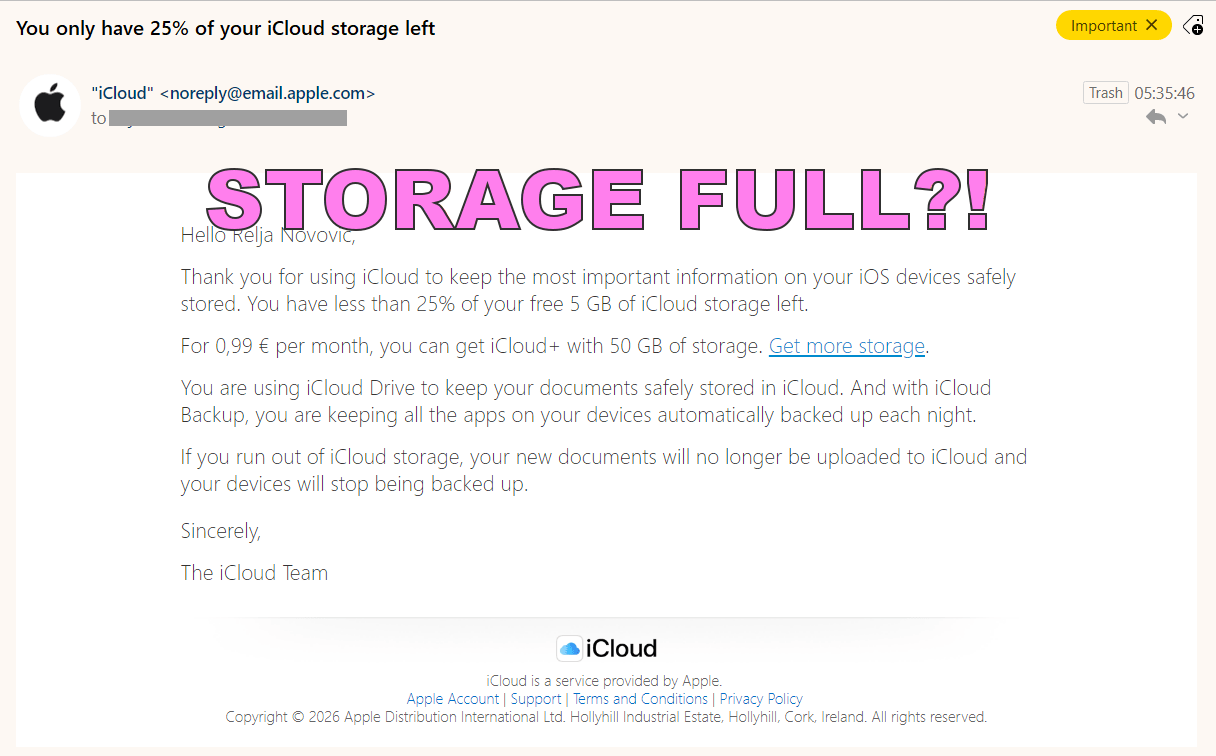
This morning I got an email you can see above, notifying me that I’ve only got 25% of my iCloud storage left. I looked into it and fixed it. This is my reminder how – for the next time. This will include a long list of apps with explanations – as real-life examples.
Note/disclaimer: this is what’s worked for me – use your own caution and common sense for your data.
Backup criteria
This is my situation – your preferences may differ but you might at least consider this philosophy:
I store all the important info on my HDD and cloud storage:
https://io.bikegremlin.com/38590/my-storage-stack/
So, iCloud only serves to keep replacing a phone as painless as possible, not to save my data – all that matters is saved properly, not relying on iCloud sync – sync is not a (proper) backup! With that in mind, here are my options:
- Keep in backup – you’d lose something non-trivial if the phone died.
[KEEP] - Optional – depends on how you personally use it.
[OPTIONAL] - Safe to remove – reinstalling the app restores everything that matters from the service itself.
Pointless to back up – iCloud backup here is mostly wasted space.
[REMOVE]
I’ll also note the few counter-intuitive cases where Apple apps look harmless but actually store data locally (Pages, Health, Voice Memos, etc.). That is:
- Apps people think need backup but don’t.
- Apps people don’t realise store annoying-to-recreate local state.
- Where iCloud backup does not actually preserve tokens despite expectations (important for banks).
Security note (important)
Keeping banking, identity, password manager, and authenticator apps in iCloud Backup is a conscious trade-off between convenience and attack surface.
iCloud backups are encrypted at rest and most sensitive apps add their own protection (PINs, biometrics, re-authentication on restore), but backing them up still means trusting your Apple ID security and iCloud as part of your threat model.
If you have a higher security requirement (for example, you want to minimise reliance on any cloud backup for critical credentials), you may prefer to exclude these apps from iCloud Backup and re-enrol them manually on a new device. That approach is more secure, but also more work.
The choices in this article prioritise practical phone replacement with minimal hassle and good (not perfect) security – not maximum isolation. Pick the balance that fits your own risk tolerance.
Settings location on the iPhone
Settings → iCloud (your account) → iCloud → iCloud Backup (This iPhone) → All Device Backups (This iPhone) → Show All Apps.
Note:
When you disable an app from being backed up, Apple basically says: “do not include this in the next backup.” So, you can disable about 5 at a time, before you activate backups, since iOS will simply refuse to set the backup off toggle key in the off position after some 5 apps have been switched off.
General guide – “rules”
General rule
If an app:
- logs you in again and everything comes back → don’t back it up – REMOVE.
- Stores chats, recordings, notes, or keys locally only (especially if you have no other backups for that data, or it’s a hassle to retrieve when changing a phone) → back it up – KEEP.
Other Apple gadgets?
Back up only those you must (no use in backing up my old phone I use for YouTube video recording only – my new phone is the main “source of truth” for apps and all) → OPTIONAL.
In a bit more detail
Banking and identity-related apps (authenticators) – KEEP.
These should be backed up, just in case. This does not take a huge amount of storage and can save some hassle when you need to get a new phone or similar.
Personal and creative data – KEEP.
Things like Obsidian, Pages, Numbers, Keynote (if you are using those).
Messengers – OPTIONAL.
Some messengers, like Viber, keep local-only history. So, unless you have backups on other devices (other phones or computers), you may want to enable backups (if keeping the messages is important to you that is).
General applications, file managers, email clients – REMOVE.
This should be backed up on other devices or have its own cloud backups.
Social networks – REMOVE.
This is the “easy win” for keeping your iCloud storage lean – everything is kept on the huge corporate servers and your app is just a client to log into those. Any data stored is just for convenience, it can be re-downloaded.
Other apps – OPTIONAL
The rest is on a case-by-case basis (see the General rule above). I lean towards removing everything I’m not certain that I need – and towards having a proper backup (not iCloud)
Application checklist
A combination of apps I’ve used over the years – sorted in alphabetic order, with a brief comment.
- AdGuard – KEEP
Keeps rules, settings, DNS profiles. Mild hassle saver. - Amazon – REMOVE
Pure account app. - Apple Store – REMOVE
No meaningful local state. Reinstall = same result. - Belt Drive – REMOVE
Bicycle mechanics app - Bitwarden – KEEP
Restores vault settings, local auth, avoids full re-setup. - Blackmagic Cam – REMOVE
YouTube recording app – settings can be redone in seconds. - Booking.com – REMOVE
- Books – REMOVE
Books, highlights, notes sync via Apple ID anyway. - Business Suite (Meta) – REMOVE
Saves it all server-side. - ChatGPT – REMOVE
Account-based, trivial. - Clips – REMOVE
- ConnectLife – KEEP
IoT pairing and device state. Worth keeping. - ConsentID – KEEP
Identity app. Absolutely keep. - Discord – REMOVE
- eM Client – REMOVE
Mail config is server-side and you already know you must re-auth anyway. - Ente Auth – KEEP
2FA seeds are critical. This is a must-keep. - E-TUBE – REMOVE
Bike firmware tool. No backup value. - Facebook – REMOVE
- File Transfer – KEEP
Likely local pairing state. Small and useful. - Files – OPTIONAL
If you store local (On My iPhone) files you care about, keep.
If everything lives in Nextcloud / HDD, you can remove.
I’ve kept this – it’s very small. - Filen – REMOVE
Data is remote. - Fire TV – KEEP
Keeps device links and pairing state. Minor but useful. - Fitness – KEEP
Health data is sensitive and sometimes partially local. - Glovo – REMOVE
Food delivery app. - Gomex – REMOVE
Retail app, no meaningful local data. - Google – REMOVE
- Google Maps – REMOVE
Offline maps are redownloadable. - Google Translate – REMOVE
Offline languages are redownloaded. - HERE WeGo – REMOVE
Offline maps redownload. - Hevy – KEEP
Workout history and templates are partly local. Good keep. - Instagram – REMOVE
Pure server state. - iMovie – REMOVE
Projects are usually local but you already don’t back up media. - iris GO – KEEP
TV/provider apps often keep device bindings. - iTunes U – REMOVE
- Keyboard Data (Chinese & Japanese) – KEEP
Very small, restores dictionaries and learned input. Sensible. - KeePassium Pro – KEEP
This preserves database config, local caches, Face ID settings. Correct. - Keynote – REMOVE
Same as Pages. - Kindle – REMOVE
Books and progress sync. - KupujemProdajem – REMOVE
Shopping app (Serbian Ebay 🙂 ) – 100% server-side. - LEGO Tower – KEEP
Games are one of the few places iCloud backup actually matters. - Medical ID – KEEP
Very important. This one is underrated. - MEGA – REMOVE
Cloud storage app. - Mein dm – KEEP
Loyalty, coupons, QR state. Good keep. - Messenger – REMOVE
Chats are server-side. - Moj A1 – KEEP
Local ISP – same logic as mts. - Moj Maxi – KEEP
Loyalty app. - Moja mBanka – KEEP
Banking apps are exactly what iCloud backup is for.
Note: some tokens still re-validate, but backup reduces re-registration pain. - Moj mts – KEEP
Carrier apps often re-require SMS/device confirmation without backup. - Net Analyzer – KEEP
Keeps scans and configs. - Nextcloud – REMOVE
Your files live elsewhere. App state is trivial. - Numbers – REMOVE
Same logic as Pages. - Obsidian – KEEP
Even if synced elsewhere, this restores local vault state and settings. - Pages – REMOVE / OPTIONAL
Docs sync via iCloud Drive if enabled, otherwise pointless (unless you use it a lot and rely on sync for backups). - Patreon – REMOVE
Account-based, no local value. - Payoneer – KEEP
Financial app. Same logic as banks. - PayPal – KEEP
Helps avoid device re-approval loops. - Photo Library – REMOVE
Curate your photos & videos and offload them elsewhere – this eats storage space in no time if left unchecked. - Plex – REMOVE
Server-side. - Plexamp – REMOVE
- pCloud – REMOVE
Your data lives in pCloud itself. - Printful – REMOVE
- PRO360 – KEEP
Bosch tools pairing and device state. Worth it. - Proton Mail – REMOVE
Mail is server-side. App re-auth unavoidable anyway. - Reddit – REMOVE
- Robot Mobile 3 – REMOVE
- Rumble – REMOVE
- RustDesk – KEEP
Device pairing and keys matter. - Shazam – REMOVE
History is cloud-synced anyway. - SOS Taxi Novi Sad – KEEP
Local preferences, saved locations. - Sound Connect – REMOVE
- SoundCloud – REMOVE
Server-side. - Spotify – REMOVE
Downloads re-download. - Status – KEEP
Local network monitoring app config. - Super Kartica – KEEP
Loyalty apps often store local cards and IDs. - Tailscale – KEEP
This one is smart. Keeps node identity and avoids re-auth annoyances. - Tax Refund – KEEP
Gov / finance. - Telegram – REMOVE
Everything server-side. - Uber – REMOVE
- Uvid u račun – KEEP
Gov / utility app. Often painful to re-register. - Viber – REMOVE / OPTIONAL
Chats are not restored via iCloud backup reliably unless Viber backup is used explicitly, but if keeping those matters and you have no other gadgets synced, you might want to back this up to iCloud. - Virtuelni Šalter – KEEP
Local natural gas utility company app, authenticated. - WhatsApp – REMOVE
WhatsApp uses its own iCloud backup toggle. This one does nothing. - Windscribe – REMOVE
VPN profiles are re-auth anyway. - Windy – REMOVE
Pure service app. - X – REMOVE
- YT Studio – REMOVE
- YouTube – REMOVE
- YouTube Music – REMOVE
Conclusion
After going through this exercise, my iCloud backup size dropped from almost full to a few hundred megabytes, without losing anything that actually matters. Replacing a phone would still be straightforward, banking and identity apps are covered, and everything else is either stored properly elsewhere or can be re-downloaded in minutes.
The key takeaway for me is simple: iCloud Backup works best as a convenience tool for restoring device-specific state, not as a general data backup system. Sync is not a proper backup anyway, so better to not use (and pay for) a ton of space on iCloud.
This setup is not “set and forget.” Apps change, iOS changes, and your own usage changes. It’s worth revisiting this list occasionally, especially after major iOS updates or when you add new apps that handle sensitive or hard-to-recreate data.
For my use case, this also made paid iCloud storage unnecessary. That won’t be true for everyone, but it’s a good reminder that defaults are often chosen for convenience and upsell potential, not because they’re optimal.
At this point, the backup is small, understandable, and boring. That’s exactly how a backup should be.