
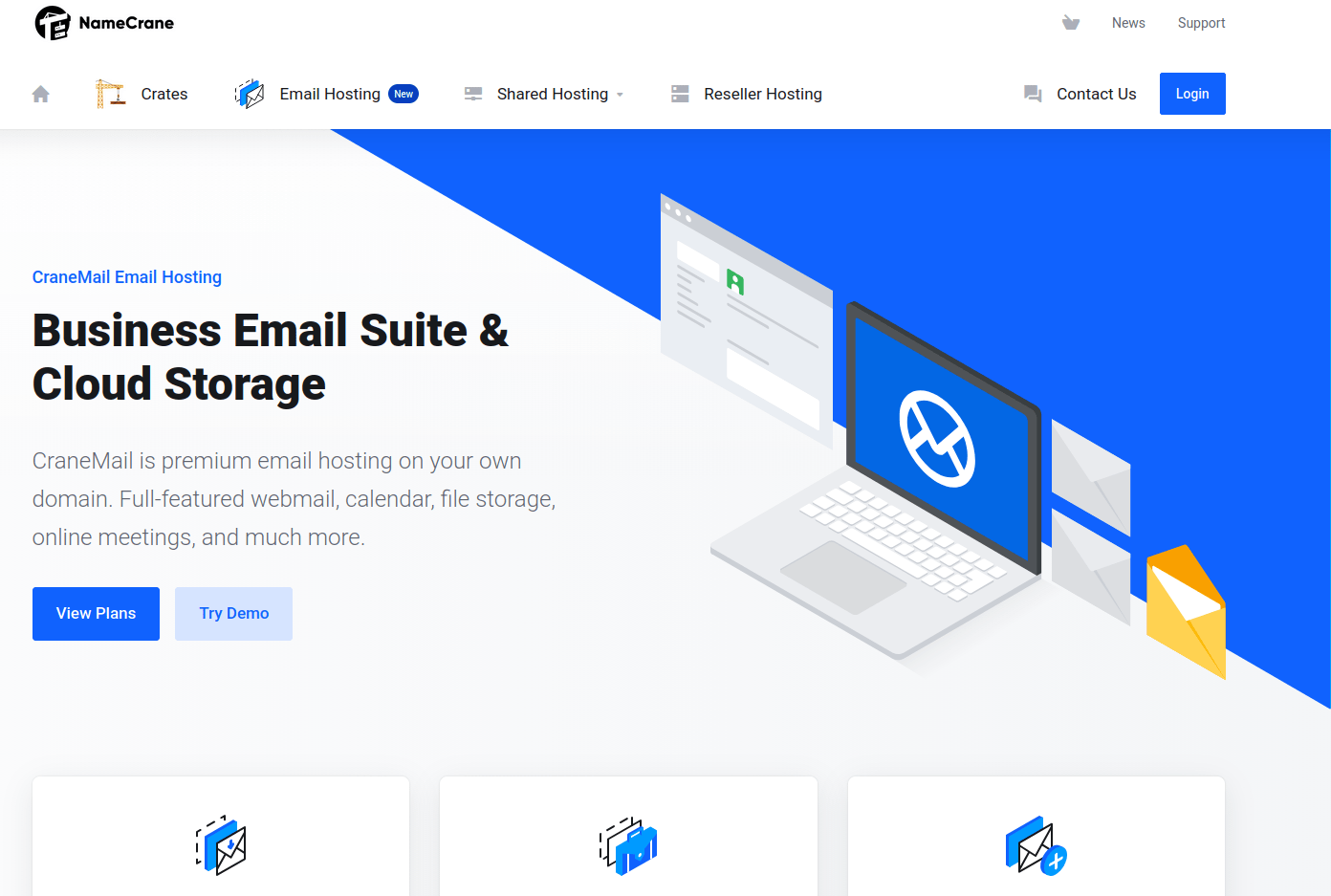
Since 2018, I’ve been very happy with Mxroute’s hosted email service (hosted email pros and cons). Still, I thought it may be a good idea to test an alternative (just in case, “The power of negative thinking” self-sabotage book coming out soon™ 🙂 ). Namecrane has a great reputation on LowEndSpirit and LowEndTalk forums – and that is where I found out about Mxroute too. That’s why I gave it a try, and here I’m writing down all the pros, cons and peculiarities of the service – and compare it with Mxroute.
Status: Active
From November, 2025 – ongoing
TL/DR
Cranemail is an OK email service at a super-low price – I’m using it, personally and for clients (for now). Mxroute is still better overall (a lot more stable, with a lot better tech. support), except for price per GB, where Cranemail is significantly cheaper.
Despite the marketing, Cranemail is not a “complete business suite” at the time of writing – contacts, calendar and collaboration features are not migration-ready and should not be relied upon.
It is also not working super-reliably at the time of writing – as you can see in this article, I seem to have gotten the worst of both worlds: corporate-like rule rigidity, combined with poor support quality typical for small low-end non-corporate providers that are at least flexible (I still hope this can and will be improved, but at the time of writing it is how it is).
I’m happy with the service, but it may not be everyone’s cup of tea, especially for business-critical use.
Like many hosting providers, Namecrane reserves broad termination rights, which is worth understanding before committing to a lifetime plan (see the TOS note below).
My Namecrane / Cranemail affiliate link (if you decide to buy thanks or despite this article and wish to support my work):
https://namecrane.com/r/296/
Introduction and deliverability
This is not a traditional recommendation piece. These are technical notes based on hands-on use, written primarily for my own reference.
For my full review policy and testing approach, see:
BikeGremlin Review Policy
Deliverability testing
Right at the start, here are deliverability tests (done using GLOCK APPS).
Note that these deliverability tests depend on the email’s subject, body text, and even the sending domain’s reputation. So, take this with a grain of salt. My point was to just demonstrate that NameCrane (and MXroute for that matter) is not worse than Gmail in terms of deliverability (though NameCrane did a bit worse in my testing so far, but not in real businsess use practice).
- Gmail deliverability test:
deliverability-report-gmail.pdf - MXroute deliverability test:
deliverability-report-mxroute.pdf - NameCrane’s CraneMail deliverability test:
deliverability-report-namecrane-cranemail.pdf
Deliverability practice
In practice – everyday transactional emails and private & business correspondence, NameCrane (and MXroute too) has very good deliverability, and very good inbound spam filters.
No complaints (will keep this up-to-date if that changes – as I do with all of my articles).
Very first impressions
Right at the start, I hit a small bump and realized that Namecrane (and its Cranemail service) is more corporate-flavoured than Mxroute. Here’s the experience:
- I ordered the cheapest lifetime email service (“Cranemail Lifetime 250G”).
- Paid for it with Paypal.
My Paypal account is registered with my domain email address (xyz@bikegremlin.com). - During the payment and account creation process with Namecrane (for Cranemail service), I used a Gmail email address (xyz@gmail.com).
Why?
For services that are related to hosting, email or domain registration, it is generally recommended to use a separate email from the domain you plan to use/register with the service. That way you can be reached in case of any problems.
If I used Cranemail for my bikegremlin.com domain emails, and set xyz@bikegremlin.com as my account contact, then in case of any email service problems, my contact email is likely to not work as well (since it’s the very same service).
So I used an xyz@gmail.com email address to register my account with Cranemail.
This is the same policy I’ve used with Porkbun and several other domain registrars, MDDHosting and a dozen other hosting providers, and with Mxroute domain email provider (Cranemail equivalent or competitor if you like).
To my surprise, my email was automatically switched to my PayPal registered email (xyz@bikegremlin.com) – automatically!
After some confusion about not being able to log in (with my email and password), I checked my xyz@bikegremlin.com email to see that my Namecrane account email was changed to my Paypal account’s email.
Namecrane said that their policy is to have account email address the same as the payment service info.
For reasons explained above I don’t think that’s very wise – and I tried to see if a support ticket with an explanation might sort it out. I got a quick, polite response that basically copy/pasted the “same as payment info” policy and called it a day.
That’s what I mean by corporate flavour.
Now, I could change my Paypal account email, but that too would make no sense. This policy seems quite unreasonable for an email service.
TOS note
Namecrane’s Terms of Service include a broad termination clause, which is common in hosting but worth being aware of when considering a lifetime plan:
https://namecrane.com/legal/terms-of-service
“1,2 – NameCrane may cancel or suspend your access to NameCrane services at any time and for any reason without notice. Upon cancellation or suspension, your right to use the service will stop immediately. You may not have access to data that you stored on the service after we suspend or terminate the service.”
Namecrane has been in the business for a long time and has a solid reputation, but this is fair to note.
CraneMail VS Mxroute
Uptime
I must add this section because practically every day I’ve been tracking the uptime (using HetrixTools – my affiliate link for the service), around 9:30 AM (Belgrade time) there is about 5-minute downtime:
https://status.bikegremlin.com/report/uptime/2025-12/7df2892e9841ca91c5ef994dd79343d4/That makes Cranemail unsuitable for transactional emails (5 or more minutes every single day is not ideal for busy webshops or even for my forum).
Update, March 2026: the daily “burps” have been fixed.
MXroute has been a lot more stable (I’d call it rock-solid, knock on wood):
https://status.bikegremlin.com/report/uptime/2025-12/ab302ad5b55ab63a94406f0dc5f18dae/
Account limits
Maximum domains per account
- Namecrane gives reasonable domain number limits, but they are limited.
Note that email addresses (per domain) are unlimited – only the number of domains is limited. - Mxroute provides unlimited number of domains even for their smallest hosted email accounts.
Sending (per hour) limits
- Namecrane has a 600 emails per hour limit – per domain.
- Mxroute set a limit at 300 emails per hour – but per email address (not per a whole domain).
Storage space
- Namecrane offers a huge amount of storage space a lot cheaper than Mxroute.
As far as I can tell, it’s even cheaper than Google! - Mxroute still hasn’t figured out how to scale existing accounts (without customers having to move servers) or how to sell huge storage space at a low price.
Backups and recovery options
One is none, sync is not a backup and other important backup stuff explained
- At the time of writing, Namecrane appears to be working on a solution for offsite customer account backups in a way that customers can easily download (if not own the backup target infrastructure).
Relevant LowEndTalk forum thread
This makes sense because they’re already offering huge storage space (I use POP3 and don’t store emails on the email server, but this feature would help the IMAP folks). - As far as I know, Mxroute still doesn’t offer that for the personal plans, but it works very nicely for my reseller plan with Mxroute.
Documentation
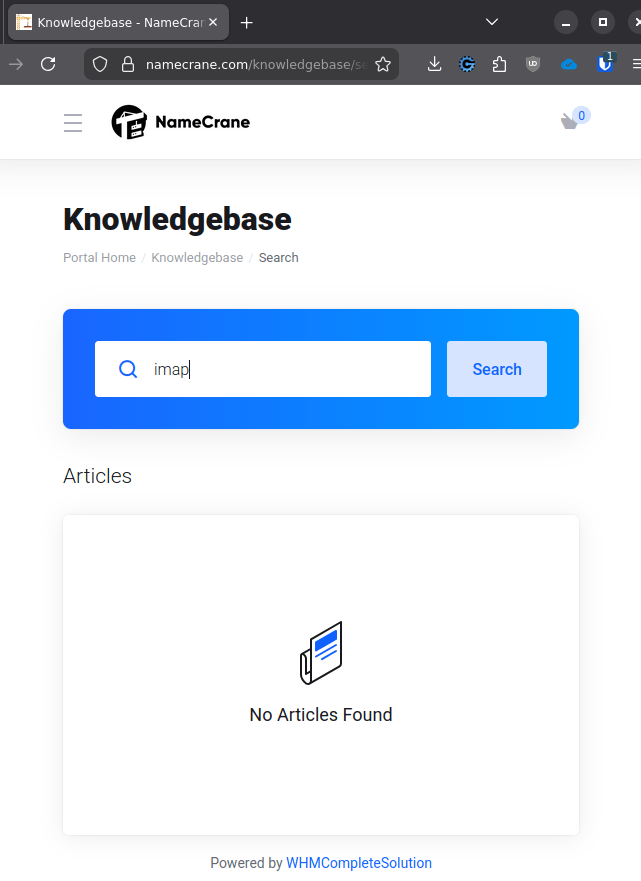
- Namecrane docs are practically non-existent at the time of writing.
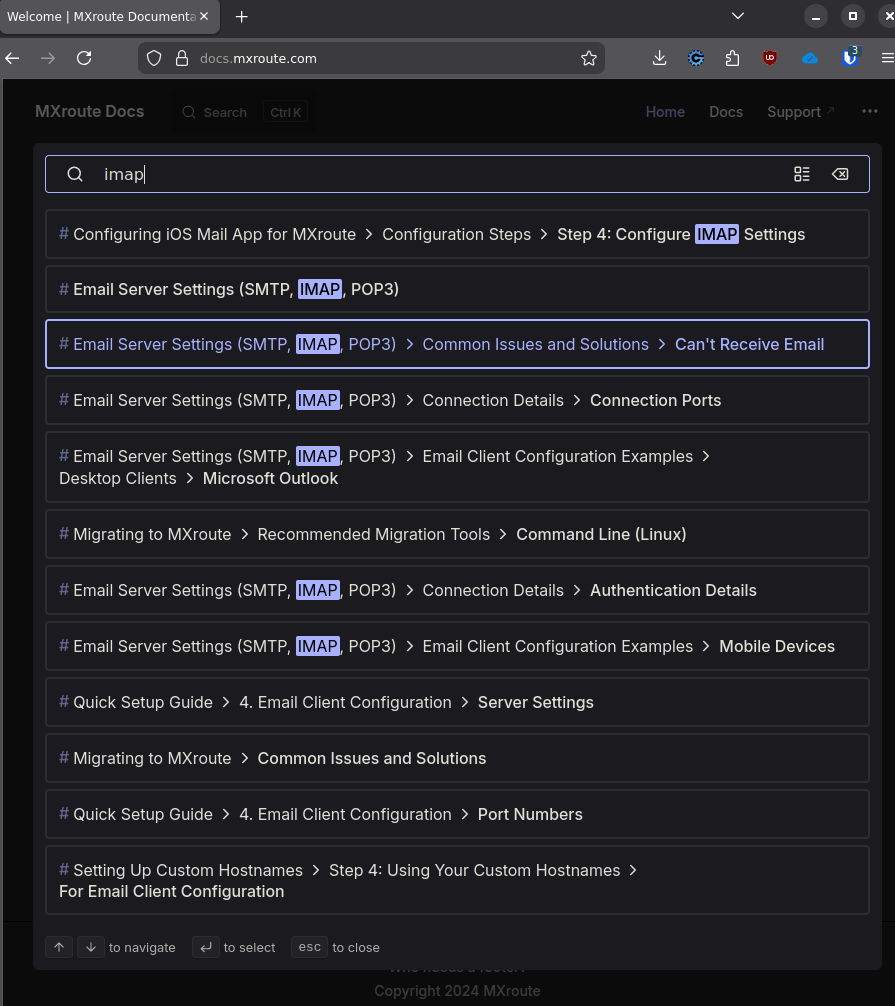
- Mxroute documentation is top-class.
Two photos speak louder than words:
Below, I wrote my own step-by-step tutorial for configuring this service:
Setup/configuration (step-by-step guide)
Technical support
Mxroute says you should not expect tech. support help for stuff that is down to your configuration (i.e. that’s your fault) – they don’t advertise as novice-friendly. In practice, since 2018, I’ve perhaps only once experienced a problem that was Mxroute-made (and not down to my mistake when configuring stuff). Still, support replies were high quality and reasonably prompt.
Namecrane‘s technical support is yet to be tested 3 out of 5 at best. The first interaction was “so-so” (see above for details). Later few interactions were OK – responses within minutes or within 30 minutes with a fixed problem (for an email infrastructure service I would call this good and fast). With some slow responses (over 12 hours during a work day’s working hours). Not the fastest, nor the best I’ve seen, but not bad. I often got canned responses that were either PR/diplomatic or repeating the existing policy or marketing texts, without an impression that the responder read my ticket with attention. Will update this if the impression changes.
Update:
One recurring thing is no straight answers (like lawyers or politicans) or no answer at all (either by not responding or by ignoring my ticket’s contents in the response). I noticed the same trend in the Discord channel too.
Expired SSL/TLS certificate
Apparently, support covers mostly work hours in the US. I hope to never test the response time for an urgent ticket, but the “low priority” ticket status spent over 13 hours unanswered on a Tuesday (working day, no holiday).
My ticket was about the SSL/TLS certificate for a newly added domain’s webmail – how long it takes to “activate” it and what the procedure is (no documentaion info, but it seems like you must first create all the required DNS records, including the MX records before the webmail is activated).
Update: no, it just took a bit longer for this SSL to be issued – but it got issued eventually, even without the matching MX records yet created (my other two domains had this issued within one or two hours, while this took over 12 hours).
Alas, when I tried logging in to check if my ticket was answered, I got a warning stating that Namecrane’s own domain’s SSL/TLS has expired (note that this has been resolved in less than one hour):
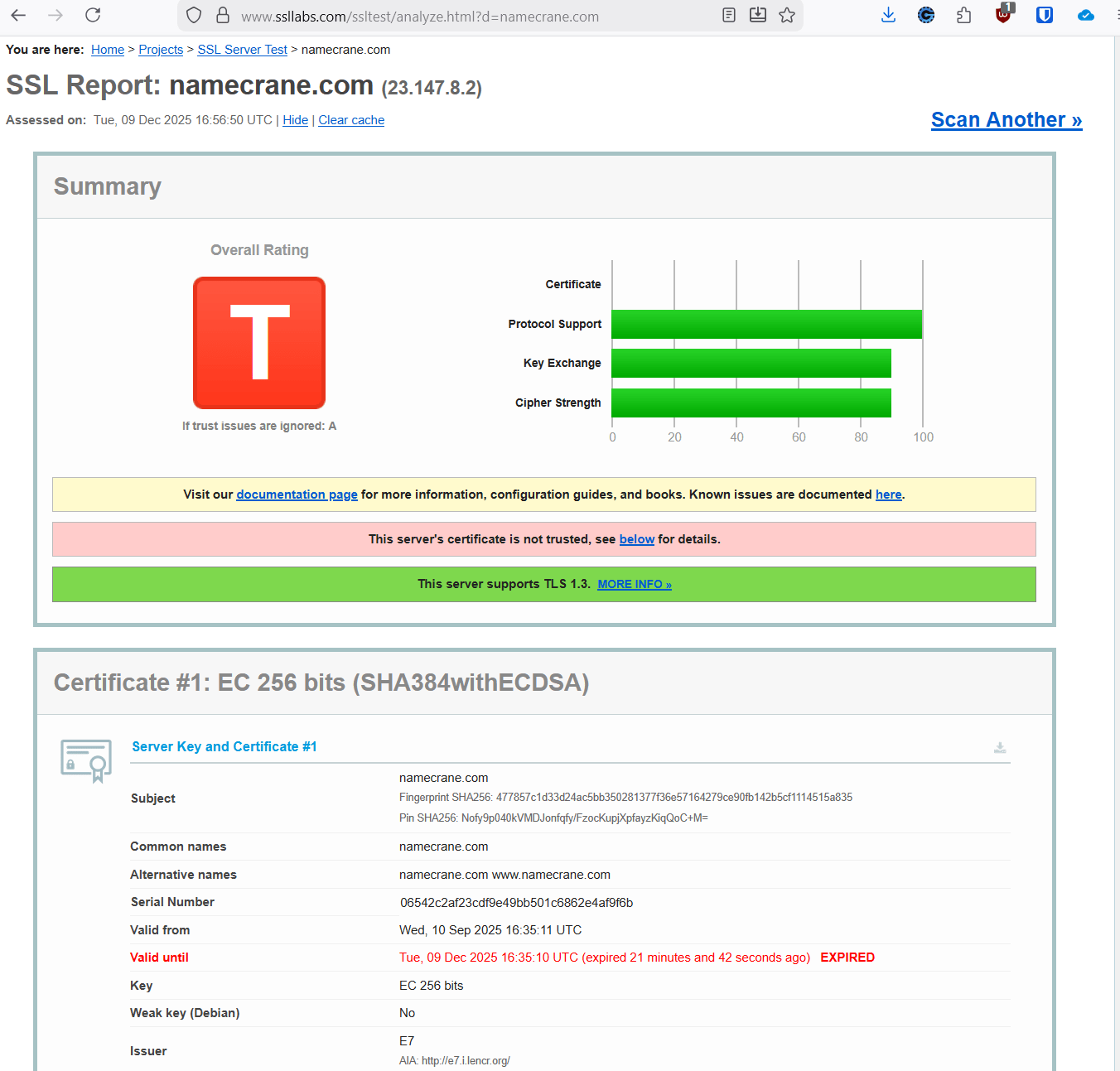
To be clear, this was not service-impacting and was resolved quickly.
It is still early to make any conclusions, but this is not looking ideal for now. It is fair to note that emails work fine – good deliverability and IMAP refresh/update performance.
Gas-lighting me effectivelly?
I had a total service malfuction on my server on a wednesday morning (9:30 CET was when I noticed the problem). I opened a ticket. During that time, I was having 5xx error on webmail (and timing out without response), and a wall of errors when I tried to log in to a mail account over the provider’s control panel.
A bit later, I got a webmail error saying that SmarterMail update is taking place.
After about 10 minutes the service went back online. I got a ticket reply saygin this:
“please test logging in incognito or using a different browser, this looks like a cache related issue“.
No mention of service update which most probably caused the problem (and, looking back at my logs, I’ve had a similar problem less than ten days ago, with a similar error log).
I was not notified that an update is planned (hope it’s not just randomly ran), and I got no explanation of the problem cause – saying it was a problem with my browser cache.
Spam filtering
- Namecrane:
“SpamExperts Premium Spam Filtering” - Mxroute:
“We create our own custom SpamAssassin rules based on continual log audits, and we run an internal RBL to fend off the worst spam networks.”
Sending Deliverability
- Namecrane –
yet to be tested(feedback from LES and LET forum members is very positive).
Update: started testing it and first impressions are very positive! - Mxroute – stellar, tried and tested for almost ten years now!
Features
Namecrane has the corporate flavour. I’ve already mentioned that in the negative context. The positive sides are that:
- It’s a larger team, so one man
riding like I do 🙂having a car accident, for example, may not put the entire company at risk. - Features provided include the task manager, eM email client to name two – I will update and expand on this as I test and use the service.
However, I came across a problem while uploading my 18 MB large address book (trying to import it to Cranemail). Knowledgebase was non-existing. Tech. support answer was not helpful either. So, I’m sticking with Nextcloud for calendar and contacts – and will see what to recommend to my clients (apparently, Cranemail is not a one-stop-shop for both emails and contacts).
Mxroute is basically only (good and reliable) email infrastructure, the rest is up to you (I use self-hosted Nextcloud for some extra features).
Control panel
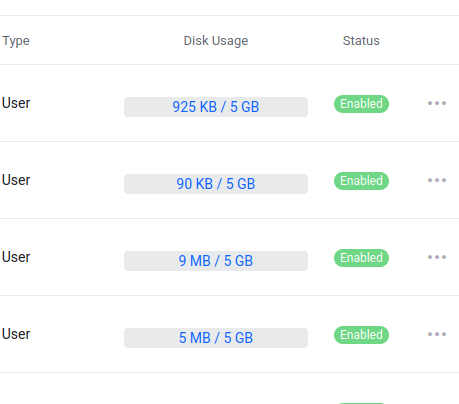
Namecrane seems to be running on WHMCS and SmarterMail (its instructions for dealing with 10+ MB address book) webmail. Apparently, Smartermail is not very smart though – see below how sorting by “Disk Usage” is done (who tested and approved this?!?):
Mxroute started with Cpanel, moved to Directadmin, but at the time of writing are developing a pretty promising custom control panel. Neat. For webmail it focuses on Crossbox when you configure it with a cname (like https://mail.example.com login address) or Roundcube when you open webmail from within the control panel.
Setup/configuration (step-by-step guide)
Here is a brief setup guide (for my own reminder if nothing else).
This section is intentionally detailed and written as a repeatable checklist rather than a beginner tutorial.
Entering setup options
Services -> My services ->
clicked on the lifetime email service I purchased, and then clicked on:
Manage Product -> Add New Domain
Configuring the options
Then, I got to set the options:
Domain Information
- Added my “Domain Name” (for domain emails).
- Default language: English UK (as it should be – the “freedom edition” is just propaganda LOL)
Split Domain Routing
Disabled
Email Archiving
I thought to try and see if the huge storage space can let me afford some on server archiving, so I set:
- Archival Years: 1 Years
- Archiving Direction: Incoming + Outgoing
Productivity Features
Beta options – that I could not disable (?!?).
SpamExperts Anti Spam Filtering
- Status: Enabled
- Administrator Access: All Domain Administrators
Primary Administrator User
I configured an administrator username and password – just in case, to not leave them on the default value (the default “postmaster” email is a spam magnet – along with “admin“, “abuse” and other common email usernames).
It’s probably a good idea to edit this user and set a storage limit (as opposed to the default unlimited storage). This account could be filled with spam blocking your entire storage (especially if you use some default values as listed above).
Login Page Customization
I set the title to a custom title (the “Page Title Text” option).
Now I got a screen with info to write down:
Domain-related info to write down
The password-related stuff (“Please write this down as you can’t retrieve it again.“):
- Admin Portal URL
- Login – the username and password I had configured as the “Primary Administrator User”
DNS-realated stuff (“Please add the following DNS record for verification purposes.“):
- Type: TXT
- Name/Host:
workspace-verification.my-domain-example.com - Value:
some-random-numbers-and-letters-49bc
DNS setup
After I clicked on the “View DNS Records” button, I got the DNS info.
“SPF & DKIM records MUST be configured on your domain. Failing to do so may result in your domain being BLOCKED.“
All the required records got nicely listed. Zero head bashing – just copy-pasting to Cloudflare. 🙂
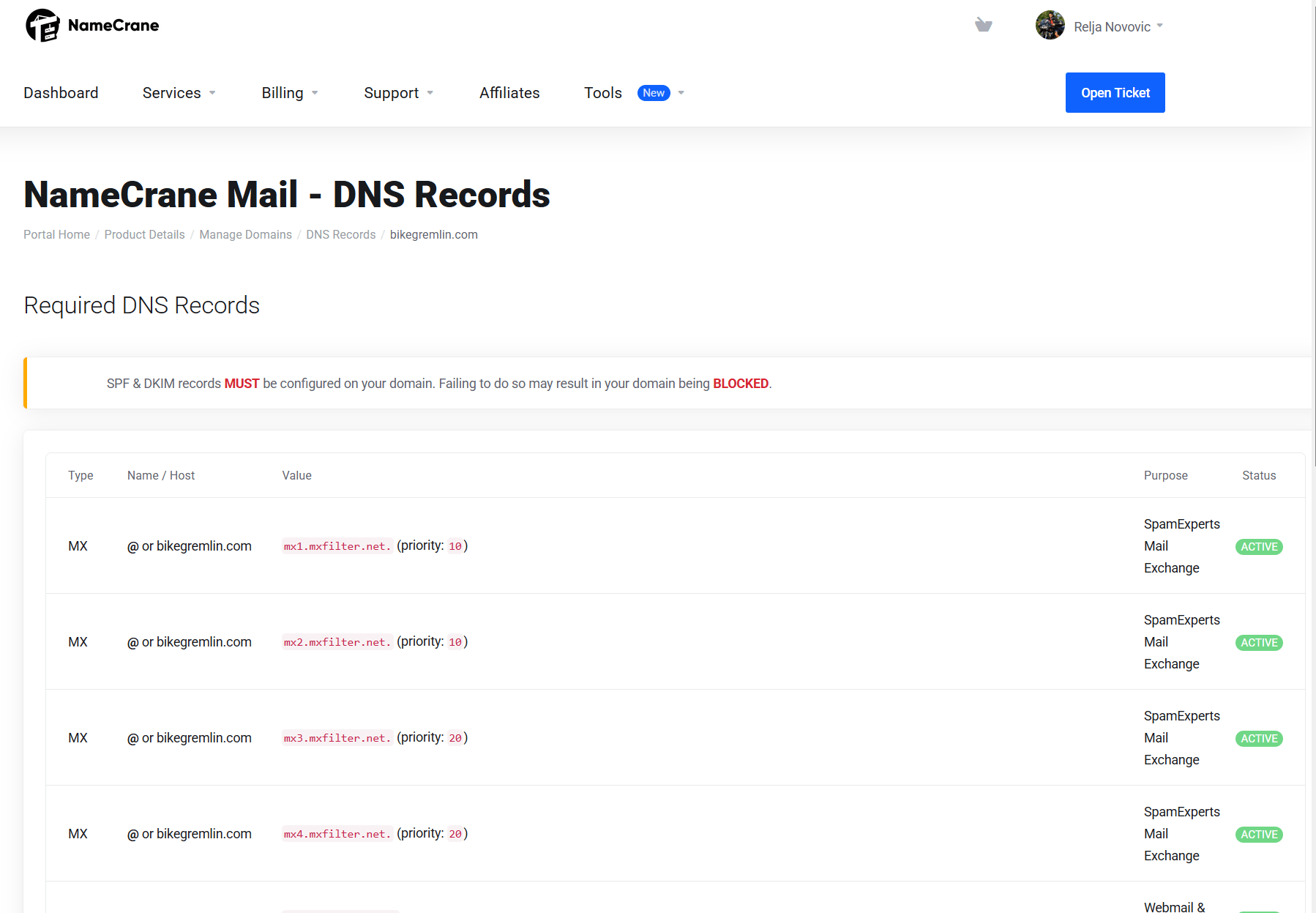
Note: for a subdomain, you must add both the “Name/Host” and the subdomain in DNS settins. The safest bet is to just add the whole “sausage” like:workspace-verification.inbox.example.com
Also, if using Cloudflare (as opposed to DirectAdmin DNS management for example), remove the full-stop at the end of each MX domain (“mx3.mxfilter.net.” )
You should add a CNAME with a “mail” subdomain of your domain (like mail.yourdomain.com) – SSL is handled by the Namecrane provider and that works fine, see Webmail below.
That “mail.yourdomain.com” can be used to make email client configuration simpler – even when you change email servers.
The SPF is set to a strict policy (which is good).
What about DKIM?!
I had to click on the “DNS Records” tab under “Manage Domains” to get back to the DNS setup list and see the DKIM value.
The given DKIM host is wrong if you are using a subdomain! You are given this:
randomnumbersletter._domainKey
bout should use:
randomnumbersletter._domainKey.example.com (for the main domain)
randomnumbersletter._domainKey.subdomain.example.com (for a subdomain)
I configured Cloudflare to have a 1-minute TTL for the records, for testing and setup. Cranemail saw the records in no time and showed them all as “active” in the menu:
I then gave myself the liberty to set a strict DMARC policy, as opposed to the default listed by Cranemail. Cranemail did not complain about this – so all looks good.
Adding an email (user)
I went back to the Manage Product option:
Services -> My services -> Click on the service -> Manage Product
Clicked on the three dots to the right of domain I just added (where it was listed), and chose the “Manage Users” option.
Then I got the “+ Add New User” button – where I could add an email and configure its storage space and other limits.
Do I add username with the “@example.com” full domain (and subdomain if used), or just the “naked” first part (before the “@” sign)?
Who knows – no tutorials by the provider. 🙂
I had to test and confirm that it’s just the “naked” part.
User settings:
- Username – without the domain (@example.com), just the user, like “maradona”.
- Display name – how you want the email recipients to see the title, like “Diego Armando”.
- Disk space – max. allowed storage space (in MB) the user can use.
- Administrator Access – if you set this to Enabled, that user can configure stuff for the entire domain (see Configuring server for clients below).
- Status – set it to Enabled, unless you wish to suspend the user (Disabled).
- Password – enter a password for the user.
Submit button saves the changes and creates the user.
Forwarding
You can configure forwarding in two ways. One way is for deleted (or non-existing) accounts, the other for existing ones.
Deleted account forwarding – Namecrane panel
If you want any emails sent to “[email protected]” to be forwarded to “[email protected]”, this is how you’d do it – go to:
Services -> My services -> Click on the service -> Manage Product
Click on the three dots to the right of the domain you wish to set forwarding for (“example.com”) ->
Then click on “Manage Aliases / Forwarders” ->
“+Add New Alias” and fill in:
- Alias / Forwarder (username without the domain, so “john” for “[email protected]”).
- Display name (how it will be shown to the recipient, “John Doe”).
- Email Destinations (where it will be forwarded to – you can add multiple emails here).
Existing account forwarding – SmarterMail panel
For this you’ll need to open either “us1.workspace.org” (unless you’re on a different Cranemail server) or the “mail” subdomain of the domain (“mail.example.com”) you are configuring (of course, if you’ve properly added the domain to Cranemail and created the needed CNAME record as instructed in the starting DNS setup).
This is where your webmail is accessed from.
Log in with the primary administrator user (“postmaster” or another user you gave those rights to). Then go to the menu:
More -> Domain Settings
Click on the account you wish to set forwarding for. In the bottom-right corner you will see the section “Forwarding” with a switch to activate “Allow automated forwarding“.
Once you’ve enabled that, you will get the option to enter the email address you’ll be forwarding to, and choose whether you wish to delete emails once they’ve been forwarded (and whether you wish to “Keep original sender and recipients when forwarded” – I would recommend disabling this).
Configuring email clients
Three dots and “Connection Guide” lists the basic settings for using the email system.
In addition to SMTP, POP3 and IMAP settings, it also provides the following services:
CardDAV/CalDAV (WebDAV URL for Contact & Calendar synchronization), XMPP (XMPP port for chat purposes – STARTTLS), and FTPS (FTP over SSL for accessing File Storage – STARTTLS).
Webmail
Webmail is available at mail.example.com (or mail.subdomain.example.com if you’ve used a subdomain), and at https://workspace.org/
SSL/TLS certificate creation for the “mail.example.com” takes about one hour, so be patient and don’t expect it to work right away.
PC – Betterbird client
Download link (Windows will complain about “potentially unsafe install bla bla” – ignore it):
https://www.betterbird.eu/downloads/
After it’s been installed and your run it, it should open the settings for a new account, but if that doesn’t happen:
File -> New -> Email Account…
- Your full name
- Email address
- Password (for the email address)
Configure manually
INCOMING SERVER
- Protocol: IMAP
- Hostname: us1.workspace.org
- Port: 993
- Connection security: SSL/TLS
- Authentication method: Encrypted password
- Username: your email address/account
OUTGOING SERVER
- Hostnam: us1.workspace.org
- Port: 465
- Connection security: SSL/TLS
- Authentication method: Encrypted password
- Username: your email address/account
Re-test – after you’ve clicked that button it will print in the middle of the screen:
“The following settings were found by probing the given server:”
Click the “Done” button and then the “Account settings” option (this is IMPORTANT).
Server Settings:
- When I delete a message: “Just mark it as deleted” (MIDDLE option)
Message Storage:
- Check the box: ‘Clean up (“Expunge”) Inbox on Exit
That’s about it.
Apple
For smartphones, Namecrane recommends configuring Exchange ActiveSync accounts:
Apple (iPhone)
https://support.apple.com/en-us/105128
That tutorial is a bit incomplete. My 2c:
Settings -> Apps -> Mail -> Mail Accounts -> Add Account ->
Enter your email address
Next ->
Add Other Account… -> Mail Account
- Name: Your name
- Email: Your email address (full)
- Password: The password you set for that email account
- Description: Your address or whatever works for you
Next
(IMAP will be automatically selected after you’ve clicked on the “Next” button)
The fields you edit:
Incoming Mail Server
- Host Name: us1.workspace.org
Or another server if you’re on a different Cranemail server - Username: Your email address (full)
- Password: it will be filled so no need to change, but this is the password you set for that email account
Outgoing Mail Server
- Host Name: us1.workspace.org
- Username: Your email address (full)
- Password: The password you set for that email account
Next
Wait – this can take a couple of minutes
Save
(“Mail” in the list below will be checked/green – so you just click the “Save” button in the top-right corner)
Congrats – you did it! 🙂
Android
The official link leads towards Google docs:
https://support.google.com/work/android/answer/9412194?hl=en
Testing
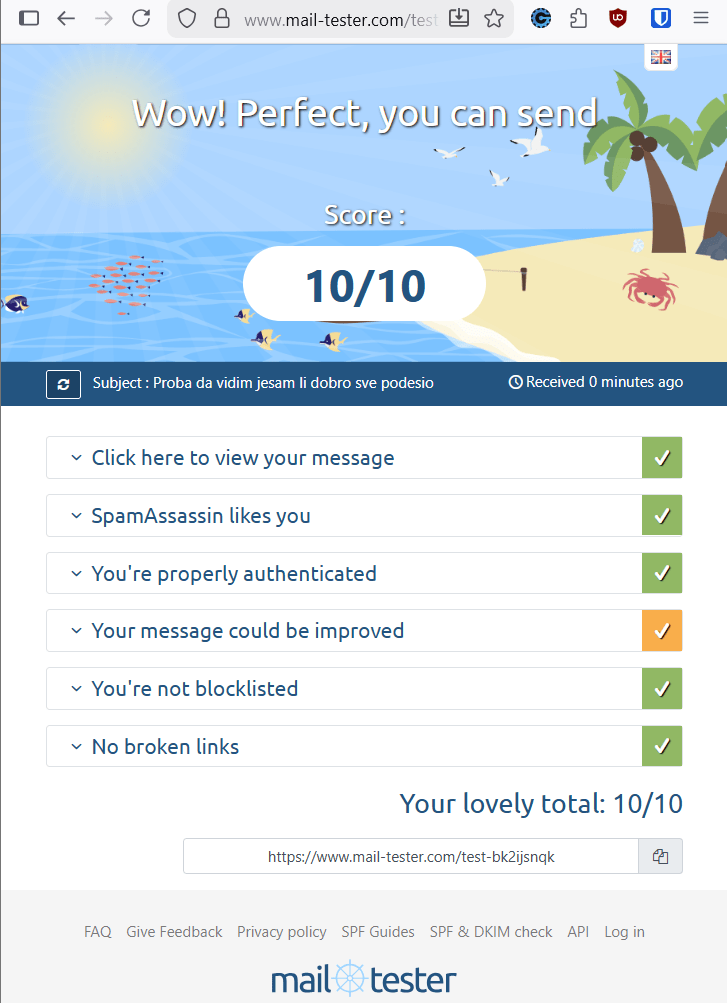
Mail-tester tests show top marks: 10/10 🙂
Cranemail is not in any blacklists and they’re doing a good job – a lot like Mxroute. 🙂
Configuring server defaults and limits for clients
To configure this, you must log in using the Primary Administrator User (like “postmaster” by default – or a user created and given “Administrator Access” rights). In the top menu:
More -> Domain Marketplace
There, you can configure stuff and get up to three free eM Client licences. Start with that, then go bottom-up across the available options. 🙂
Domain Marketplace options
More -> Domain Marketplace
eM Client email client included in the price
More -> Domain Marketplace -> Email Client
Everyone on LES forum is praising the eM Client, but it was not obvious how to get the promised free licence! LOL. 🙂
- Click on the “em Client” option, then click on the “Request Code” button. Then you get emailed that code to the admin. account you clicked the option with.
- Enter the given code and click “Verify” button.
- Fill in your data (Name, email etc.).
Now comes a message that only lets you click on the “Cancel” option – that’s OK (“eM Client has been registered on this domain…”).
Note1: I don’t think it works for subdomains (the licence).
Note2: The email will be registered with eM Client’s licence manager – so if you have an account with that email the licence will be added there.
Troubleshooting the free smartphone eM Client app:
https://forum.emclient.com/t/why-is-em-client-slow-on-mobile/111138/21
Other Domain Marketplace options
For other options, I’ve disabled all the bells and whistles – but that’s me (you do you 🙂 ).
- File storage – disabled all (my storage stack recommendations).
Click on an option -> click on the switch to disable/enable it -> click “Save” - Document Collaboration – disabled all.
You may need to toggle a switch back-and-forth before the Save is enabled for the state you desire. - Conferencing – you guessed it – disabled!
- Chat Provider – disabled (will update this in case of any changes).
- AI Integration – I could not figure out how to set this to disabled?!
Update: you need to enter a working ChatGPT API secret key, click “Test And Fetch Models” button, and only then will you be able to toggle the switch to Disable it and Save that setting. You can then revoke your API key, just to be on the safe side (since it remains saved on the platform even after you’ve disabled it):
https://platform.openai.com/api-keys - Overview – lists what you’ve enabled so far.
Domain Settings
More -> Domain Settings
Again from the last option, up:
User Defaults
Just the stuff I edited from default.
- Account
– Mailbox Size Limit MB -> 5000 (I want to be notified if someone starts hosting big files on their email account and see what’s going on) - User
– Language -> English
– Time Zone -> (UTC+01:00) Belgrade, Bratislava… - Service Access
– Chat -> disabled - Webmail
– Draft auto-save -> enabled - Throttling
– Outbound Messages per Hour -> 100 (note, this is per one email address, not per domain!)
– Message Throttling Action -> Reject (this is the default, I want to be warned and notified when someone sends over 100 emails in one hour!)
In hindsight, this was a wise decision – the owner of a mid-sized client company apparently told every employee to email everyone from their address book notifying them of email address change (over 30 accounts with 100 to 300 addresses each) – and the block policy resulted in them calling me about “my email not working” instead of blacklisting their own domain for mass spamming. I temporarily further reduced the limit to 30 per hour, until I sort it out and finish more phone calls.
– Outbound Bandwidth MB per Hour -> 200
– Bandwidth Throttling Action -> Reject (again, I want clients to call me when they start making a mess!)
Clicking on the Save button saves the (changed) settings.
Propagate button lets you select checkboxes for the settings you wish to propagate for selected or all users (you also get to pick this) – default language and similar. Neat! 🙂
Password Requirements
Just the stuff I edited from default.
- Requirements
– Minimum Password Length – set this to over 20 as anything below is asking for trouble.
General
Just the stuff I edited from default.
- Folder Auto-Clean
– Allow users to override auto-clean settings -> disabled
– Override auto-clean settings -> enabled
+ New Rule
Deleted items – (Time in Folder) Remove over 60 days old
Junk Email – (Time in Folder) Remove over 60 days old
Sent Items – (Time in Folder) Remove over 750 days old - Calendar Auto-Clean
– Allow Users to override auto-clean settings -> enabled
– Override auto-clean settings -> Never - Webmail Login
Customized the options to my liking
Events
This is neat. Lets me configure automatic email notification to admin and the “offending client” if the client sends email over X KB in size, or if the client’s account is over XX % full. An example for the storage nearly full email notification:
Events -> New ->
Options tab
– Event Name: “Over-85”
– Event Status: Enabled
– Event Category: User
– Event Type: User Disk Space Used
-> Save
Conditions tab (click on it) -> New
– Condition: Mailbox Usage (%)
– Condition Operator: Greater Than
– Value: 85
-> Save
Actions tab (click on it) -> New
– Action: Send an Email (fill in the address and template – very intuitive)
-> Save
You can have multiple actions and conditions under one Event (I used two actions to set emails to the offending client and the server admin).
Click on the Events sidebar to get back to the list of Events.
Other Domain Settings options
For now, I didn’t change the following settings:
- Spam Filtering (configuring this in SpamExperts options).
- Signatures (leaving this for each user and email client to set for themselves).
- Sharing
- Content Filtering
- eM Client – this just lists the number of activated eM Client licences.
- User Statuses – see the current status (enabled/disabled, Password Violations, etc.).
- User Connections – Last Login and other stats.
- Accounts – overview of all the existing domain accounts, with disk usage and last login.
Experience with the service
Here are the practical things worth noting.
IMAP directory structure change
When I create a directory (i.e. “folder”) it syncs fine.
However, move and rename won’t work well with IMAP (this is not just Cranemail related as far as I know). The safest way to rename or move a directory structure is to:
- Log into webmail.
- Create the desired new structure.
- Drag & drop emails to their new directories.
- Delete the (now empty) old directories.
Then, e-mail clients like Betterbird will sync this with no problems, just give them enough time and a decent speed Internet connection (POP3 is better for the really slow Net speeds).
Contacts import
When I tried to import my contacts from Nextcloud (in standard .vcf format), I got an error stating that the limit is 10 MB (my contacts are 18 MB). Neither knowledgebase nor tech support offered any kind of guidelines or even vague timeline as to how to import this.
The same goes regarding exports to common address book formats (besides CSV format). So backups and migrations are also questionable as far as I can see.
That’s why I can not with a clear conscience recommend my clients to rely on Cranemail for anything except just the email infrastructure. Namecrane advertises Cranemail as:
“Complete Business Suite – Not just your standard webmail. Integrated email, contacts, calendar, file sharing, online meetings and more.”
My first hand experience doesn’t reflect this promise.
I should stress that this is not a novice-user issue. I am an experienced user, familiar with email infrastructure, address book formats and migrations. Even after contacting technical support, I was unable to import a real-world contacts database. If this process is not workable for an expert user, it is difficult to see how average business users (the very audience a “complete business suite” is marketed to) are expected to succeed.
The good
Overall, despite my criticism (I hope those concrete points will get fixed/improved), it’s a good service.
I love the fact I could configure auto-deletion of sent and junk (and deleted) emails after X days for example (separate setting for each of those items) – see above for details. You can configure this even for the inbox!
This is important for average users who just keep piling up stored emails to incredible sizes (sometimes easily exceeding 30 GB of Gmail’s paid storage increase). Most of these emails are just forgotten, not deliberately preserved.
DNS setup is very intuitive – see above. Kudos for this, it’s a no small thing.
The bad
Technical support
Slow to respond on average and often misses the mark. For example: if I open a ticket with two questions, that I put under nubers (to avoid any confusion, so: “1. question a; 2. question b”), they would answer only one, often with what looks like a generic answer.
For more details (including a practical gas-lighting situation), see the Technical support section above.
No status page or clear communication
When the server was down for over one hour on Monday morning, clients called me and I was as confused as they – had no idea what’s going on. It took over three hours for the tech support to reply to my ticket with a brief explanation, and there was never any info on the provider’s website about the outage (or that they’re even aware of it – which is why I had opened the ticket though it turned out to have been a major downtime for many users).
Update on a Monday morning – that brought the server down at 9 AM on monday (Amsterdam time). You don’t do that if you advertise your service as a “complete business suite.”
This service seems so close to being great. I hope they fix this.
Strict zero spam policy for lifetime accounts
I’ve never had an account send any spam, but I am aware that things get hacked (mail client going bonkers, user PC or “just” email login credentials compromised etc.). With MXroute, I can still count on being contacted in case of any problems to fix any honest mistakes. Namecrane has a strict zero spam termination policy and that’s it. If any account sends spam, my whole lifetime plan gets suspended (with all the domains hosted on that plan). Fortunately, other lifetime plans aren’t affected (and my entire account still remains “in-tact”), but the plan which sent any spam gets suspended entirely. For full-paying clients, reseller makes sense, but I’ve been using MXroute lifetime to host emails for a dozen pro-bono stuff I’m helping friends with. I suppose I won’t be moving any of those to Namecrane (in the least, friends would need to buy their own plans, which complicates setup, maintenance and backups, but it is how it is).
Conclusion and references
This is a work in progress. I will try to keep this up-to-date.
- Relevant Lowendspirit forum thread which inspired this testing and writing to a great degree:
CraneMail vs. MXRoute - Lowendtalk forum thread regardin Namecrane hosting service (backups advertised, known by the provider to be faulty, customer not notified, backups missing when the data was deleted – aligns with my experience with Namecrane tech. support and operation so far):
https://lowendtalk.com/discussion/213632/bad-experience-namecrane-support-ignore-the-ticket-more-than-3d/p1
My Namecrane affiliate link – if you decide this service works for you and want to support me while ordering:
https://namecrane.com/r/296/
Last updated:
Originally published:
